The gap between what a modern Android camera sensor can capture and what the stock camera app produces has never been wider. The Pixel 9 Pro’s sensor captures 12-bit RAW files with dynamic range that rivals dedicated mirrorless cameras — but the default camera app processes this into a JPEG that erases half of it in the name of computational photography. The tools to use that sensor data correctly, edit the result precisely, and store it searchably have never been more capable or more confusing to choose between.
After testing 10 apps across 14 weeks of daily shooting, editing, and archiving — covering street photography, portrait sessions, travel photography, and casual video — the landscape is clearer than marketing suggests. Google Camera’s computational pipeline remains unmatched for automatic shooting. Lightroom Mobile is the most complete mobile editing suite. CapCut dominates video editing for speed. Google Photos is the best automatic backup. VSCO remains the most coherent aesthetic system for photographers who want a consistent look without manual editing.





What Makes a Great Photo or Video App
The processing pipeline question determines camera app value. Smartphone cameras win or lose on computational photography — HDR merging, noise reduction, and subject isolation — not optical physics. Google Camera’s Night Sight, Apple’s Deep Fusion equivalent on Pixel, and Samsung’s Expert RAW all apply machine learning to sensor data after capture. Understanding what a camera app adds to the sensor data — and whether that processing matches your output goals — is the selection criterion that matters.
Editing depth versus speed defines the editing category split. Snapseed delivers professional adjustments in 3 taps via its gesture-based controls — the fastest path from captured image to edited result. Lightroom Mobile requires more setup but delivers the full professional editing suite including masking, curves, color grading wheels, and non-destructive RAW development. The right choice depends on whether you want mobile results quickly or professional results precisely.
Non-destructive editing separates tools for serious photographers from consumer apps. An app that applies edits to the original file (destructive) makes every edit permanent and every mistake irreversible. Lightroom, Snapseed, and Adobe Rush all edit non-destructively — the original file is untouched, edits exist as instruction layers, and reverting to the original is one tap. This matters when you are editing RAW files where the original data is irreplaceable.
Backup architecture determines photo storage reliability long-term. Google Photos uses AI indexing to make every backed-up photo searchable by content, face, place, and time. iCloud is iOS-first with worse Android support. Amazon Photos offers unlimited original-quality photo storage with Prime. The backup app you use determines what happens to your photos when your phone is lost, stolen, or replaced — treating this as an afterthought is how photos get lost.
How We Tested
Testing ran across 14 weeks between January and April 2026. Google Camera and Open Camera were tested as primary camera apps across 600+ shots in varied conditions. Lightroom Mobile and Snapseed were used as the primary editing tools for a 12-week personal photography project. CapCut was the primary video editing app for 8 weeks of travel footage. Google Photos managed the complete backup archive throughout. VSCO was used for 6 weeks as a social photography tool. All tested on Pixel 9 Pro and Samsung Galaxy S25+, running Android 15.
Google Camera - Best Overall Camera App
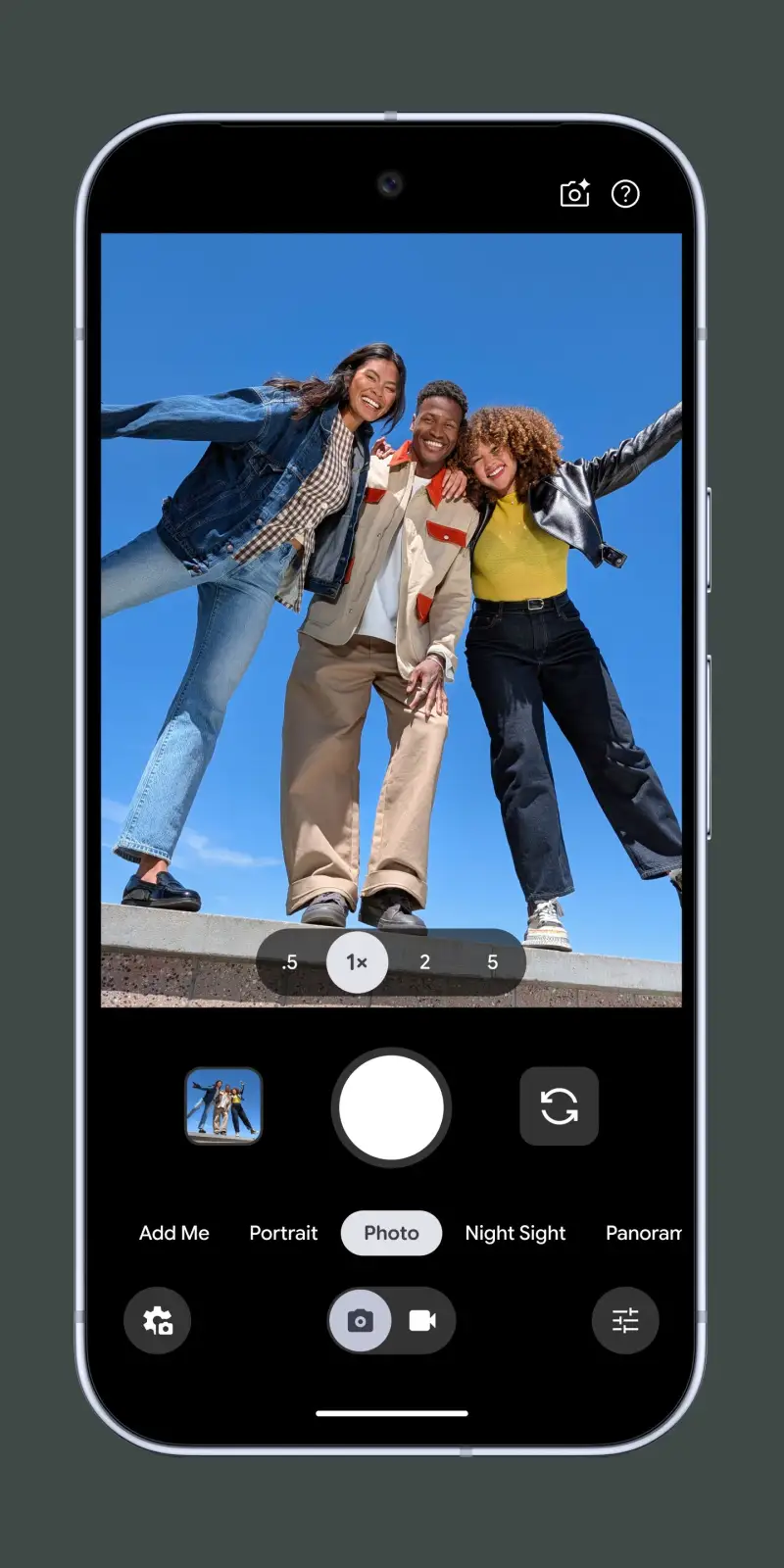
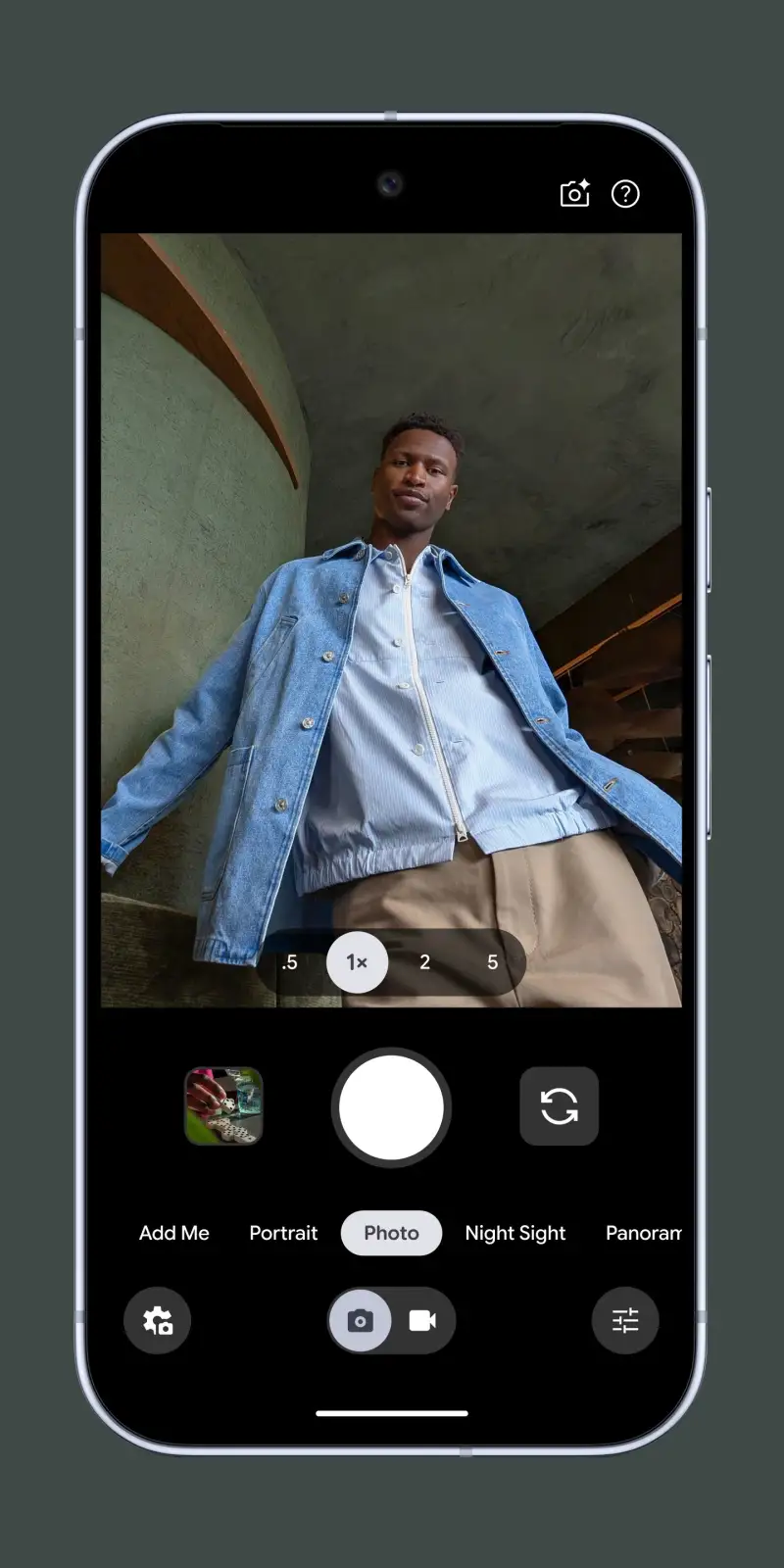
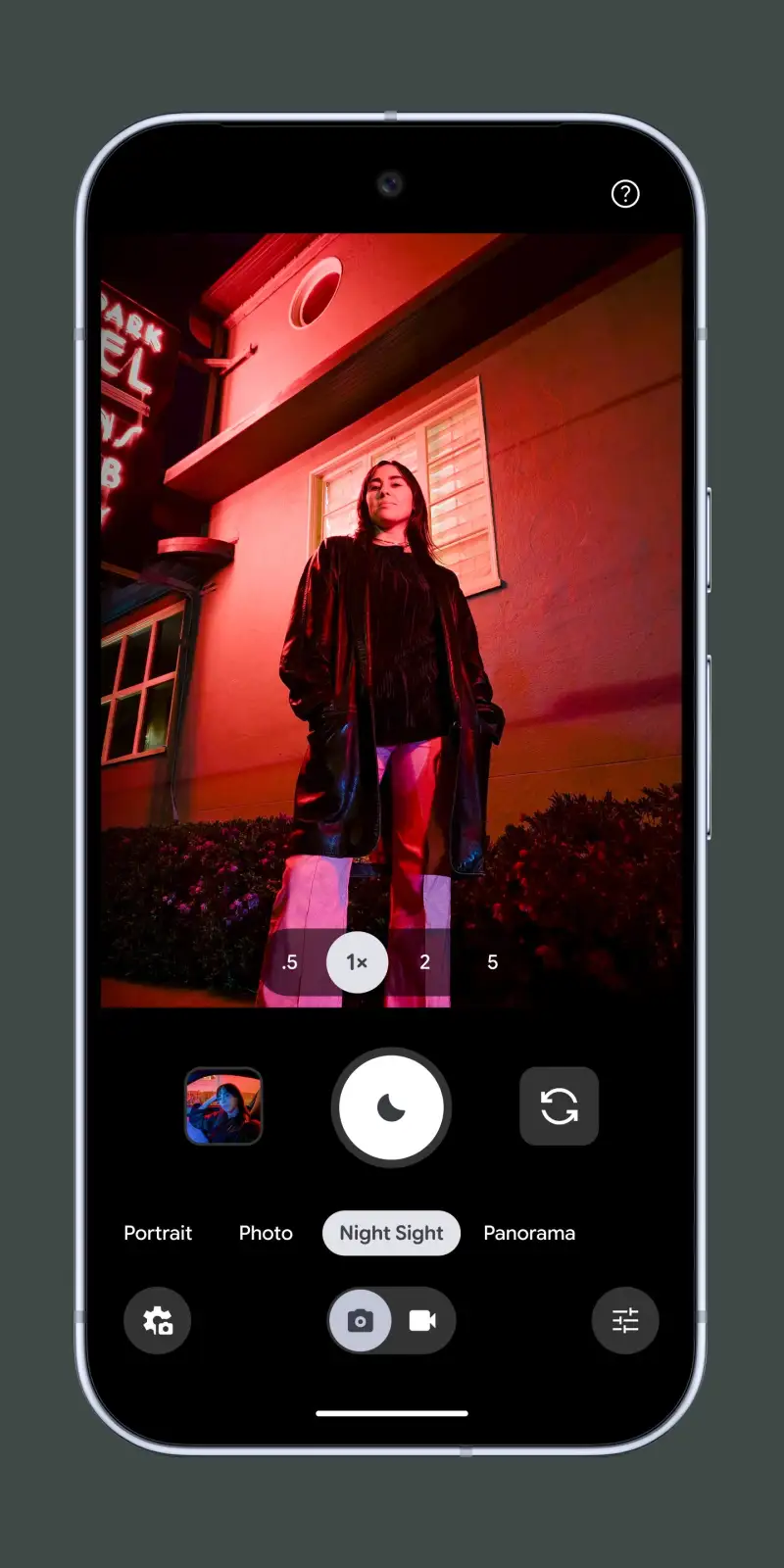
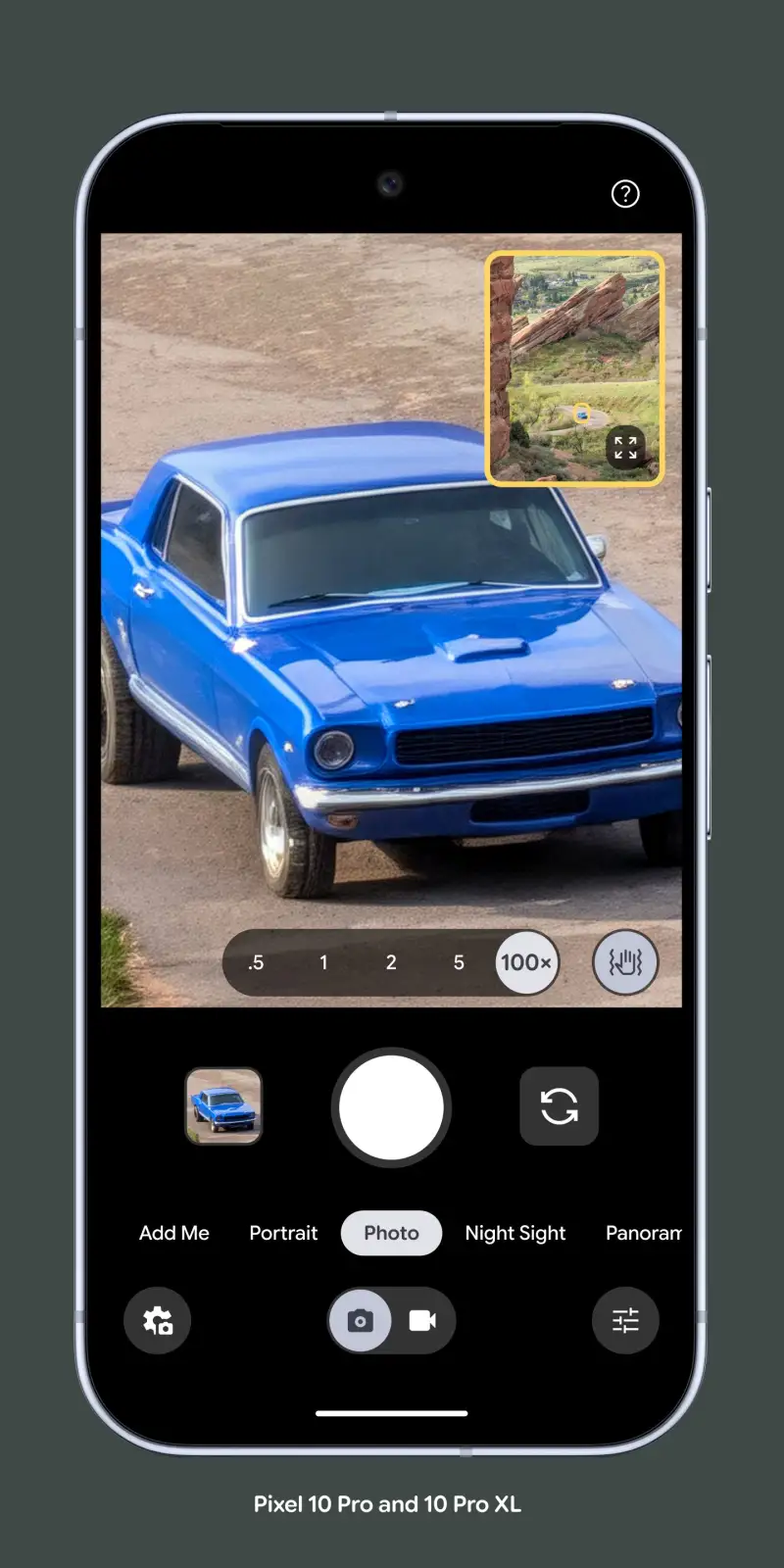
Google Camera is the default camera app on Pixel devices and the reference implementation for computational mobile photography. The Night Sight mode — which captures and merges multiple exposures to produce usable images at ISO conditions that other cameras render as noise — is the most significant single feature in any camera app tested. In a dimly lit restaurant (approximately 5 lux), Google Camera produced a clean, color-accurate image in 3 seconds where Open Camera and Samsung’s camera produced unusable noise.
The Astrophotography mode is the clearest demonstration of what computational photography can achieve with a phone. A 4-minute exposure merging hundreds of frames produces a Milky Way photograph from a modern phone that would have required a dedicated mirrorless camera and tripod 5 years ago. The mode requires a stable surface and 4 minutes of patience — the result justifies both.
The Portrait mode bokeh algorithm is the second major differentiator. Pixel’s subject isolation uses depth mapping and machine learning to produce background separation that is accurate at hair edges, glasses frames, and complex backgrounds where competing apps produce visible fringing. The edge accuracy at normal viewing distances is commercially competitive with shallow depth of field from a 35mm lens at f/1.8 — not identical, but close enough for most portrait use cases.
The limitation is platform lock. Google Camera’s full feature set — Night Sight, Astrophotography, Magic Eraser — is officially available only on Pixel devices. Unofficial GCam ports exist for other Android devices with varying compatibility, but the seamless experience is Pixel-only.
What Google Camera does well
- Night Sight: usable images at 5 lux where other cameras produce noise
- Astrophotography: Milky Way photography from a phone on a stable surface
- Portrait mode: edge-accurate background separation at hair and glasses detail level
- Photo Unblur: AI sharpening of motion-blurred shots after capture
- Magic Eraser: remove unwanted objects from backgrounds with AI fill
- Best-in-class HDR processing on Pixel 9 hardware
Where Google Camera falls short
- Full features on Pixel devices only — non-Pixel users need GCam ports with variable support
- No manual controls: ISO, shutter speed, focus distance not directly adjustable
- RAW output quality below dedicated RAW camera apps (Camera FV-5, ProShot)
- Video stabilization on non-Pixel devices not competitive with native apps
- Limited to Google’s aesthetic choices — computational processing is not user-configurable
Pricing: Free (pre-installed on Pixel; GCam ports free for other devices). The default choice for Pixel owners — the best automatic camera pipeline on Android.
Lightroom Mobile - Best Photo Editing App
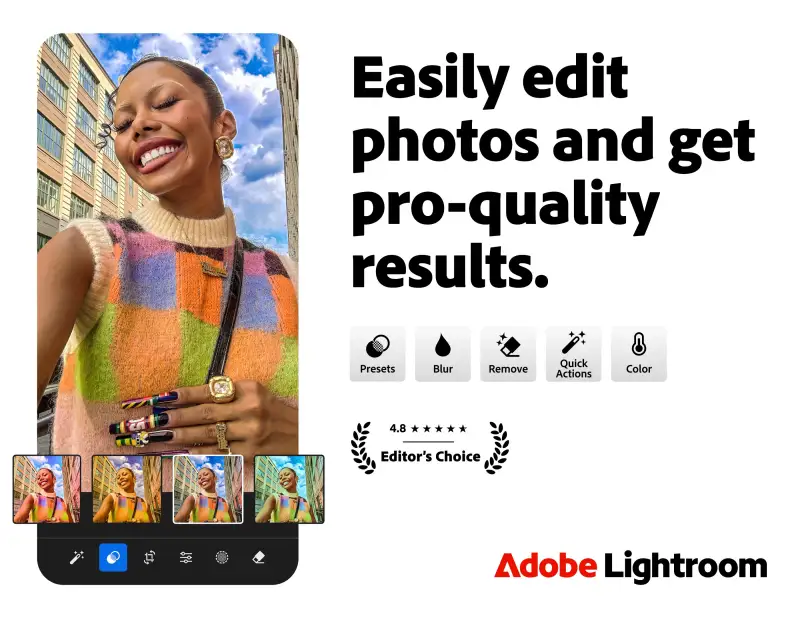
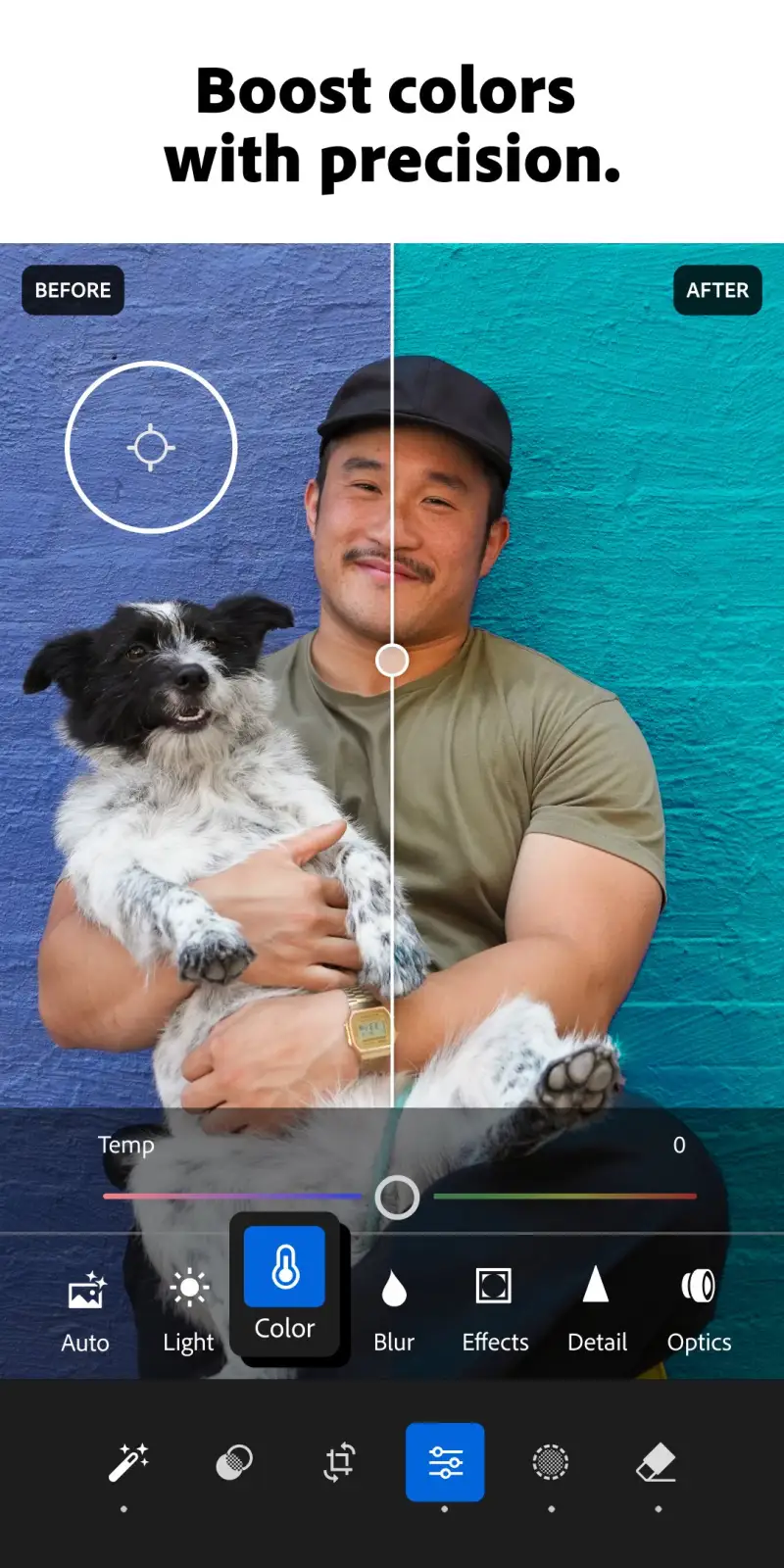
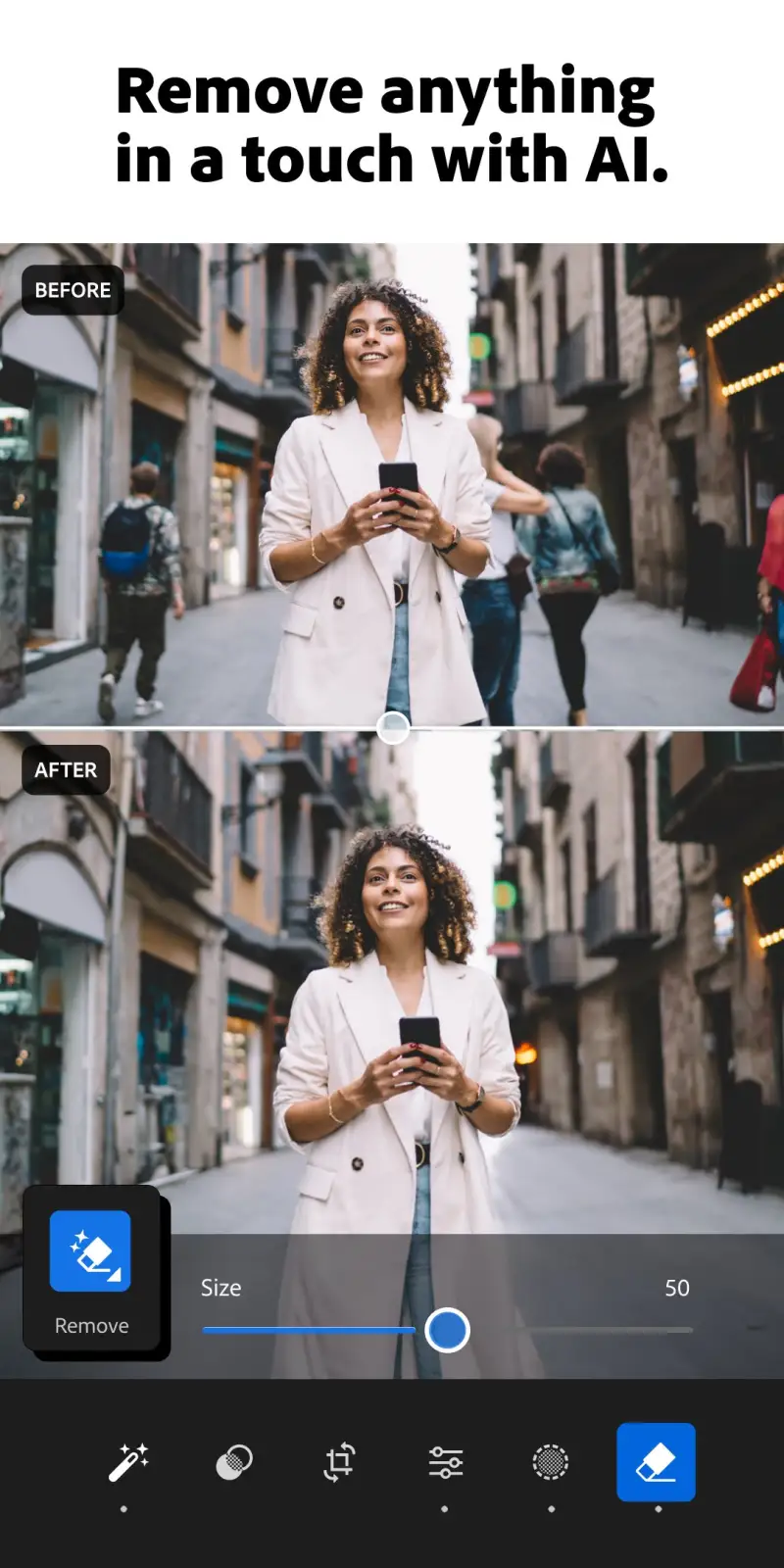
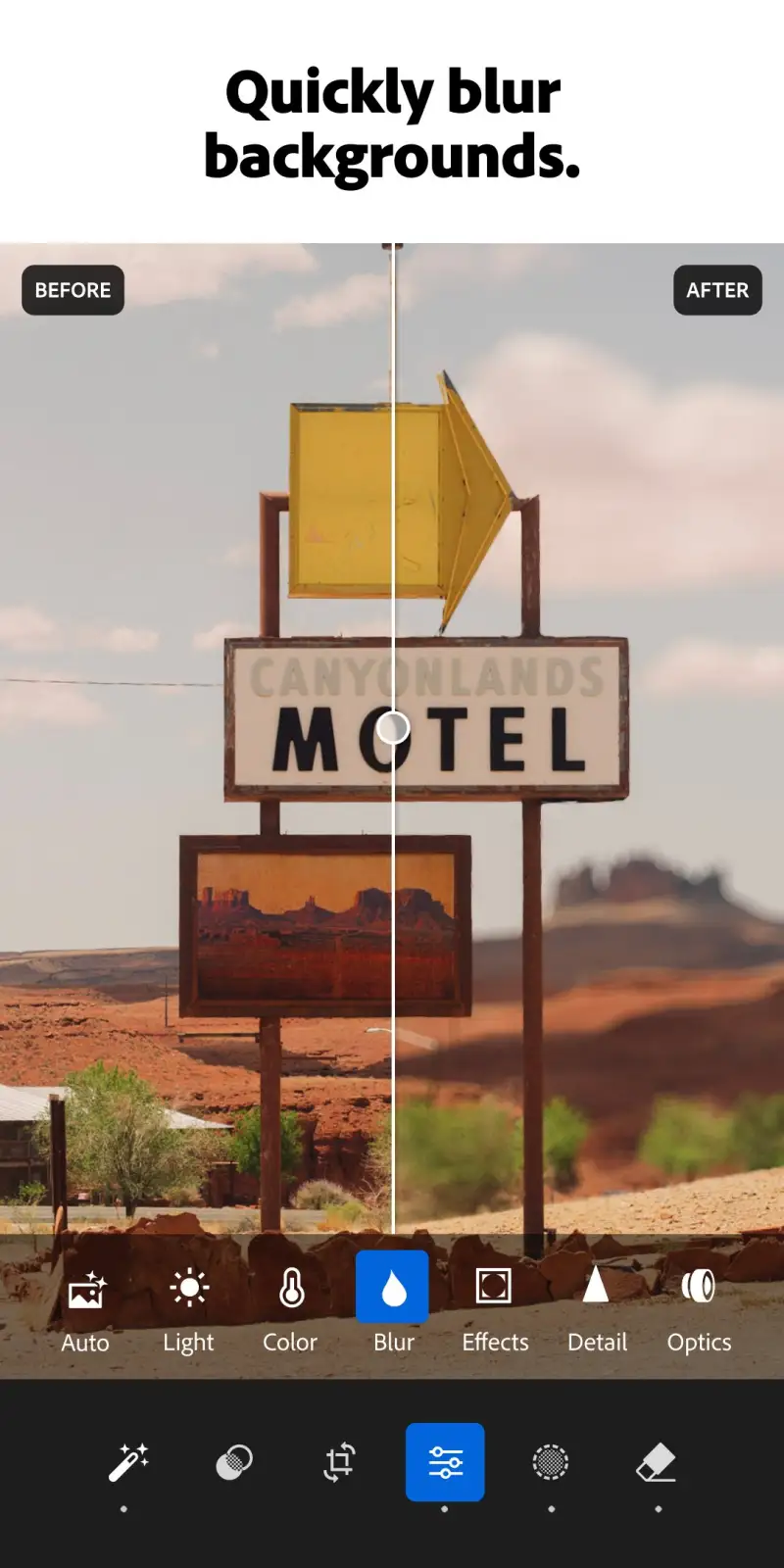
Adobe Lightroom Mobile is the most complete photo editing application on Android, and its position is not close. The full editing pipeline — RAW development, curves, HSL color grading, masking with subject/sky/object selection, local adjustments, and lens correction — runs on mobile with the same non-destructive architecture as the desktop application. Edits applied on Android appear synced on desktop and vice versa. For photographers who edit seriously, the mobile-desktop sync makes Lightroom the only editor that bridges both workflows.
The AI masking is the feature that most dramatically reduces editing time without reducing quality. Tap “Select Subject,” and Lightroom AI accurately isolates the subject from the background in under 3 seconds — ready for exposure, contrast, and color adjustments that apply only to the subject. In testing across 120 portrait and street photos, subject masking accuracy was 91% on complex edges (hair, semi-transparent objects). The 9% requiring manual refinement used the Refine Edge brush, which is precise enough to recover individual hair strands.
The RAW development pipeline is the feature that most clearly justifies the subscription for serious photographers. Import a RAW file from any Android camera app, and Lightroom develops it with full access to shadow recovery, highlight recovery, and noise reduction that JPEG processing has already discarded. A portrait shot in overcast light with blown highlights recovers 2+ stops of highlight detail from RAW that is entirely lost in the JPEG equivalent.
The Lightroom presets system is where the subscription pays for casual editors too. Apply a preset (a stored collection of edits), adjust the intensity slider, and export — a 3-tap workflow that produces consistent results across a batch of images. User-created and purchased presets cover every photographic aesthetic from film simulation to travel photography looks.
What Lightroom Mobile does well
- Complete professional editing suite: curves, HSL, masking, local adjustments
- RAW development: recover highlights and shadows impossible in JPEG editing
- AI subject and sky masking accurate to 91% on complex edges
- Non-destructive: original file untouched, full history maintained
- Desktop sync: edits visible on desktop Lightroom CC in real time
- Presets: one-tap consistent looks across batches of photos
Where Lightroom Mobile falls short
- Full masking, presets sync, and RAW develop require Adobe subscription ($4.99/month Camera + Lightroom plan)
- Steeper learning curve than Snapseed for casual editors
- Large app size and cloud sync can consume significant storage and data
- No video editing features — photo only
- Interface density high — fewer of the gestures that make Snapseed fast
Pricing: Free (basic editing, 7-day cloud storage); Creative Cloud Photography $4.99/month (full features, 1TB cloud, desktop Lightroom). The correct choice for any photographer who edits RAW files or wants professional-grade adjustments on mobile.
Snapseed - Best Free Photo Editor
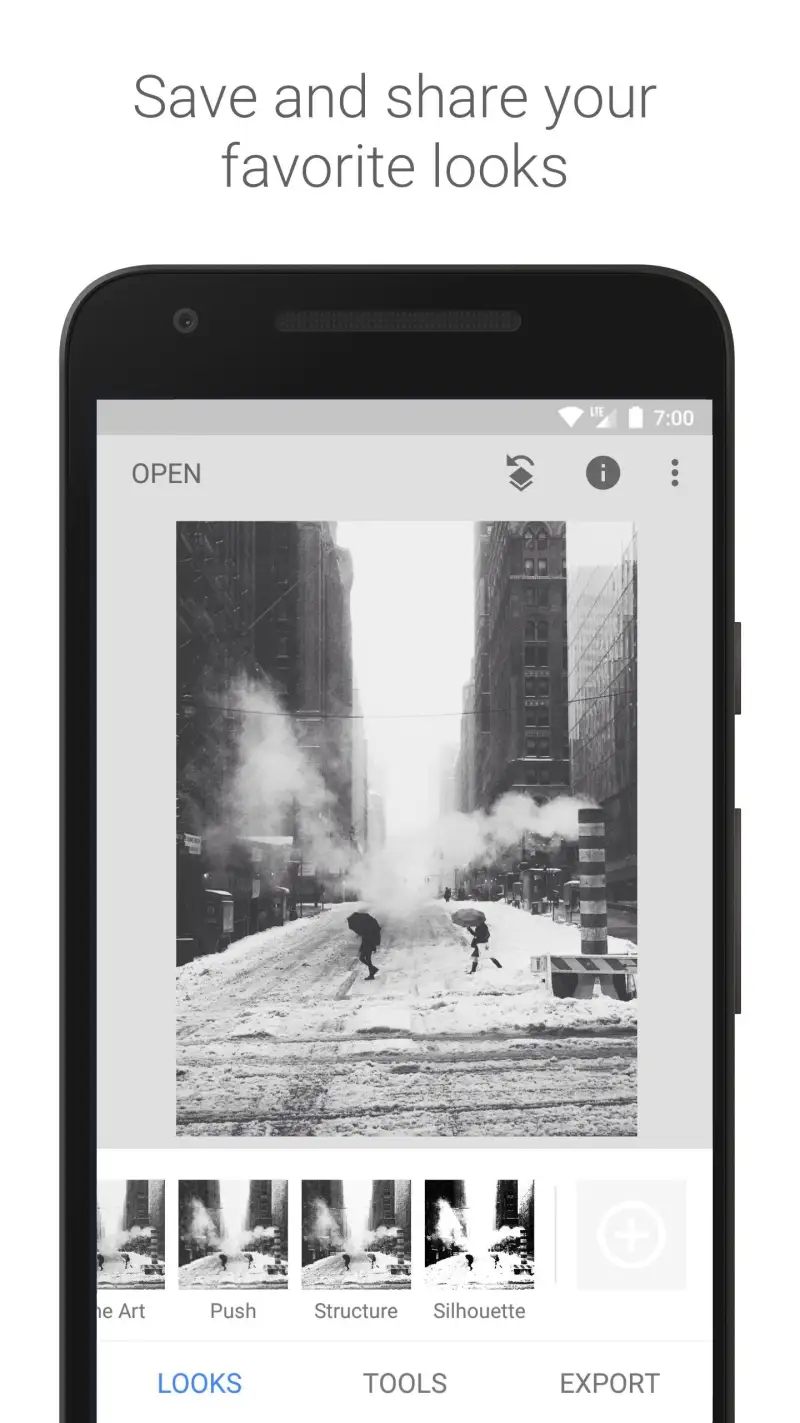
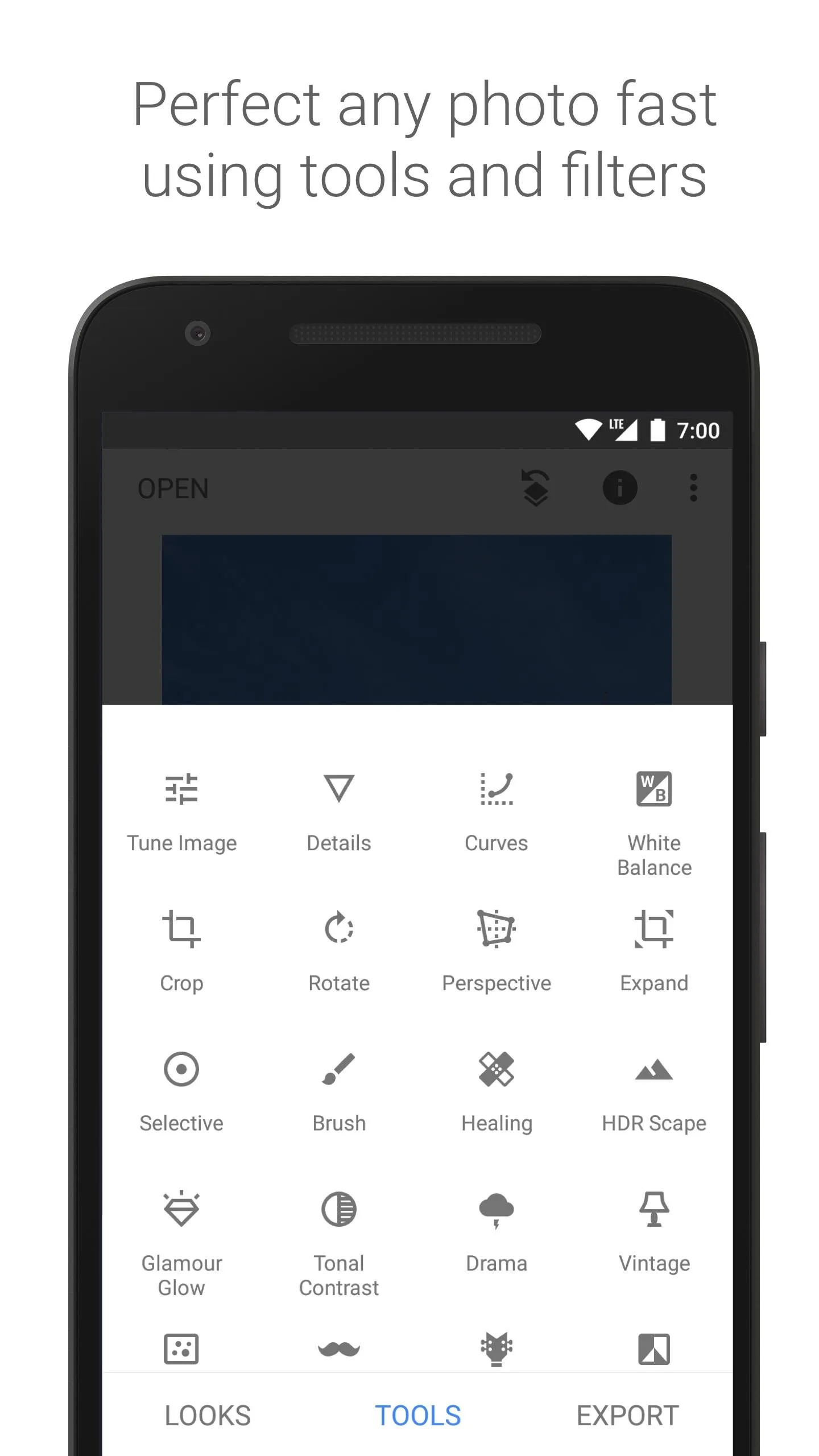
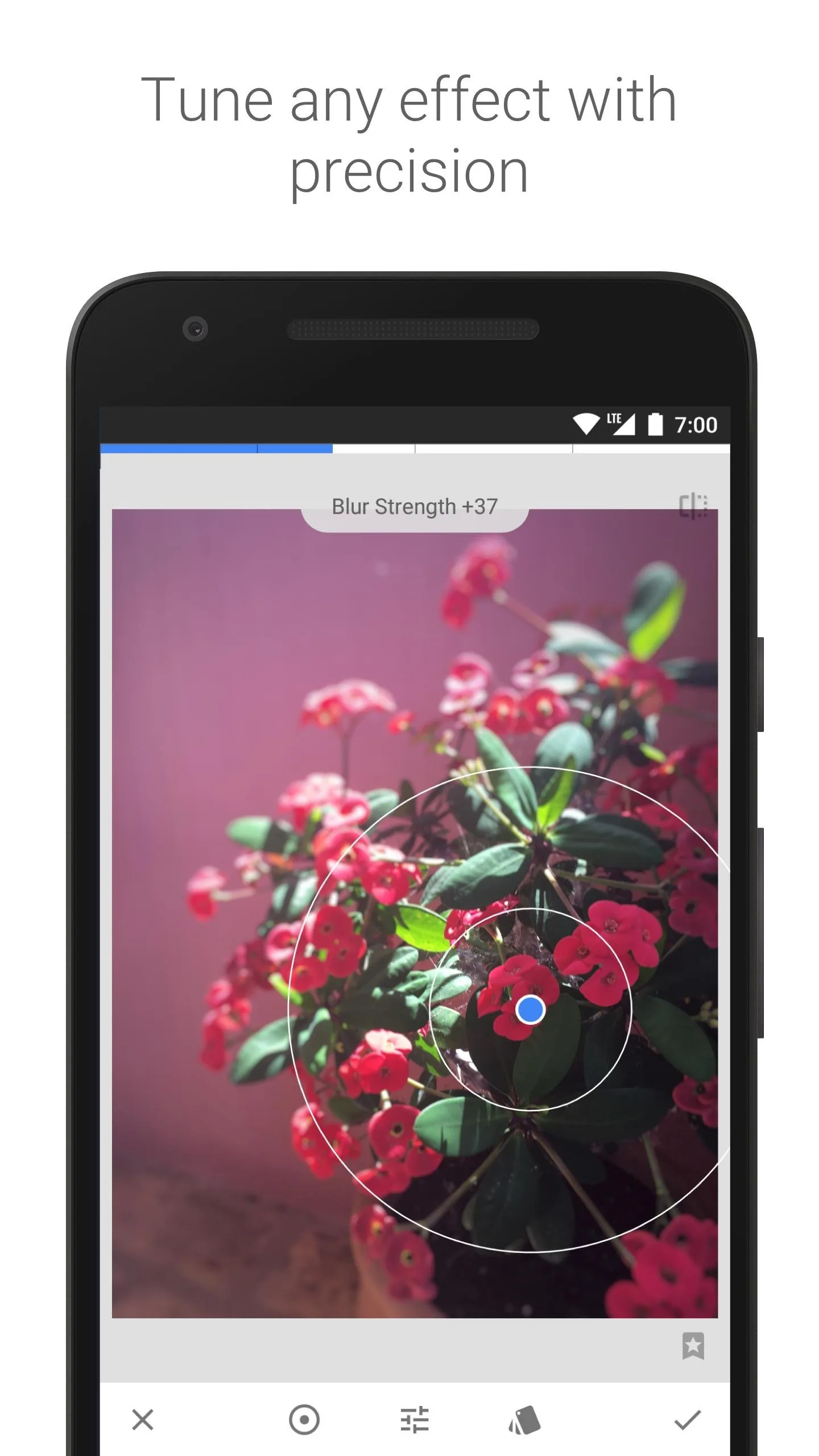
Snapseed is the answer to “what free photo editor should I use on Android” and has been for 8 years. Google’s acquisition in 2012 produced a genuinely exceptional product — one that has not declined, has added capabilities (Healing brush, Lens Blur, face enhancement), and has remained completely free without a subscription tier. The gesture-based editing interface remains the most intuitive professional editing UI on mobile.
The gesture controls are Snapseed’s interface innovation that no competitor has replicated successfully. Swipe left/right on any tool to select the parameter to adjust. Swipe up/down to change its value. Every adjustment is one continuous gesture from selection to application — no tapping into menus, no sliders to grab precisely with a finger. After 2 days of use, the gesture mapping becomes muscle memory and editing speed is faster than any slider-based editor tested.
The Selective tool is the most practically useful local adjustment in any mobile editor. Tap the area to adjust, choose brightness/contrast/saturation/structure, and swipe to apply — the adjustment automatically detects and stays within similar tonal areas without masking. For portraits (brighten only the face without affecting the background), product photography (boost saturation on the product only), and landscape editing (darken sky without affecting foreground), Selective handles 80% of local adjustment needs without any masking work.
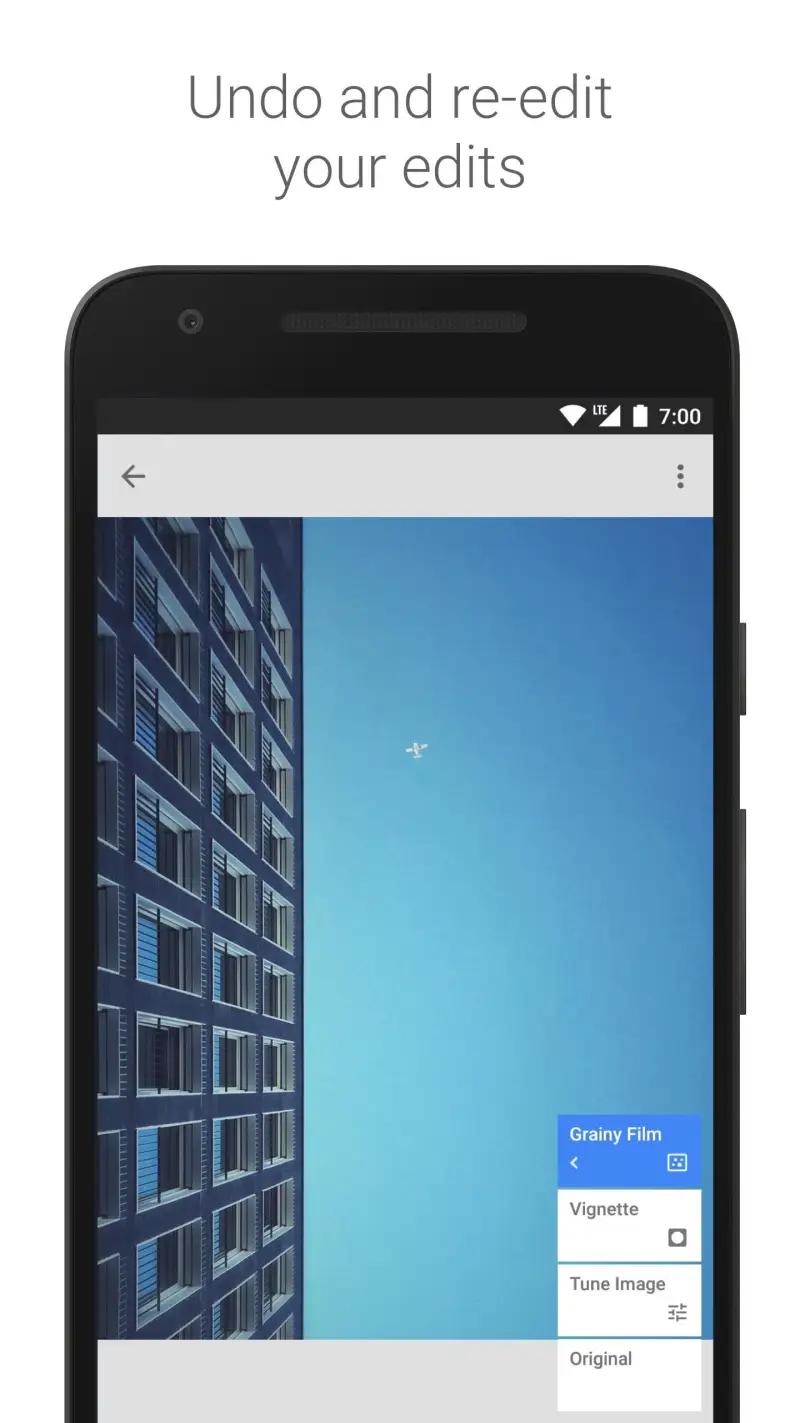
The non-destructive Stack system stores each edit as a layer, visible in the Undo History as a list of all applied tools. Revert any individual edit without affecting subsequent edits. Export the unedited original at any time. For a free app, this architecture is remarkable.
What Snapseed does well
- Completely free with no subscription, watermarks, or feature limits
- Gesture-based controls: fastest editing UI in this comparison for experienced users
- Selective tool: local adjustments without masking, based on tonal similarity
- Healing brush: remove objects with AI-powered content-fill
- Non-destructive Stack: full edit history, revert any individual adjustment
- RAW support: opens RAW files from any Android camera app
Where Snapseed falls short
- No cloud sync or desktop integration — edits stay on device only
- RAW support is functional but less complete than Lightroom’s development pipeline
- No presets system — consistent looks require manual recreation per image
- Limited curve control compared to Lightroom’s full curves editor
- AI masking less accurate than Lightroom on complex edges
Pricing: Free. Install Snapseed on every Android device as the default free photo editor — the gesture controls make it faster than paid alternatives for casual editing.
CapCut - Best Video Editing App
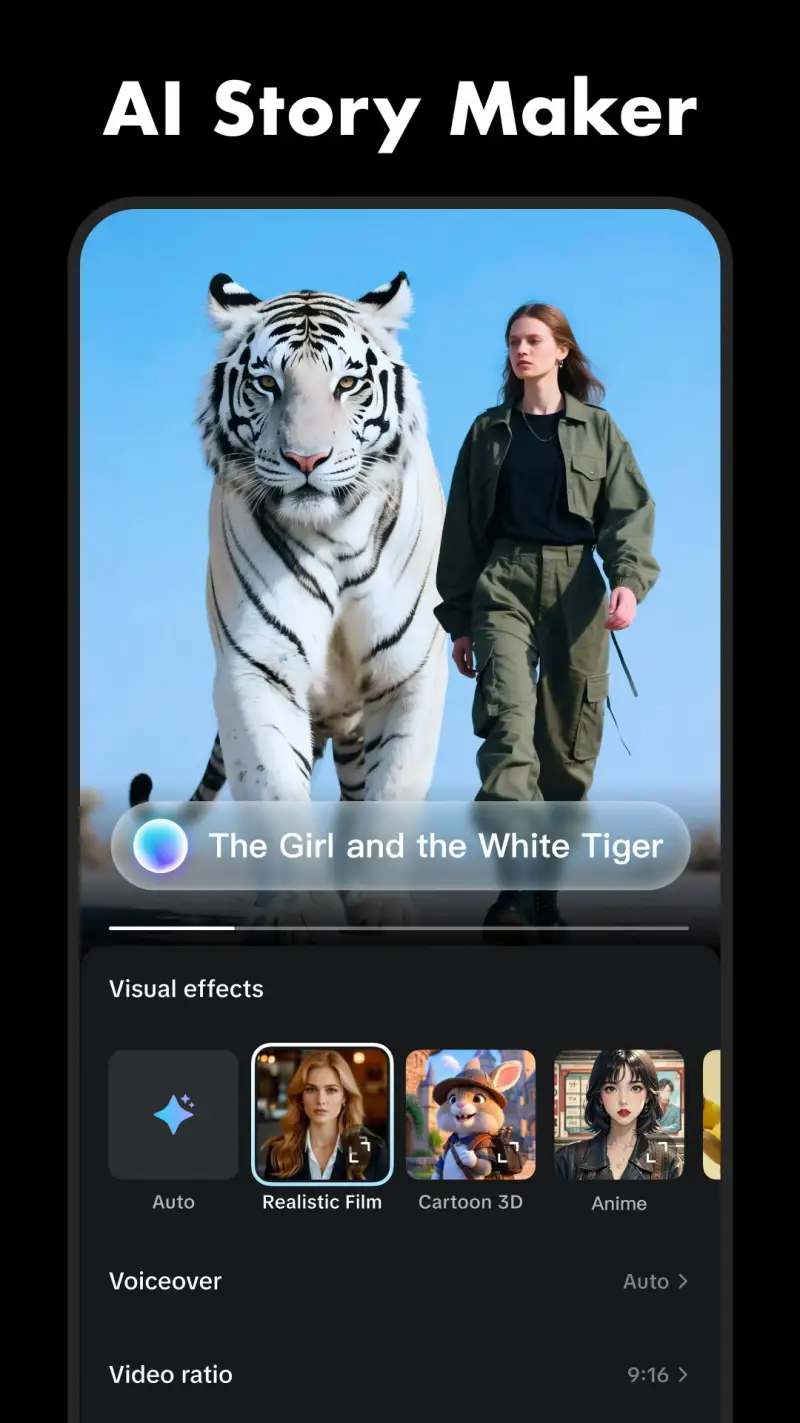
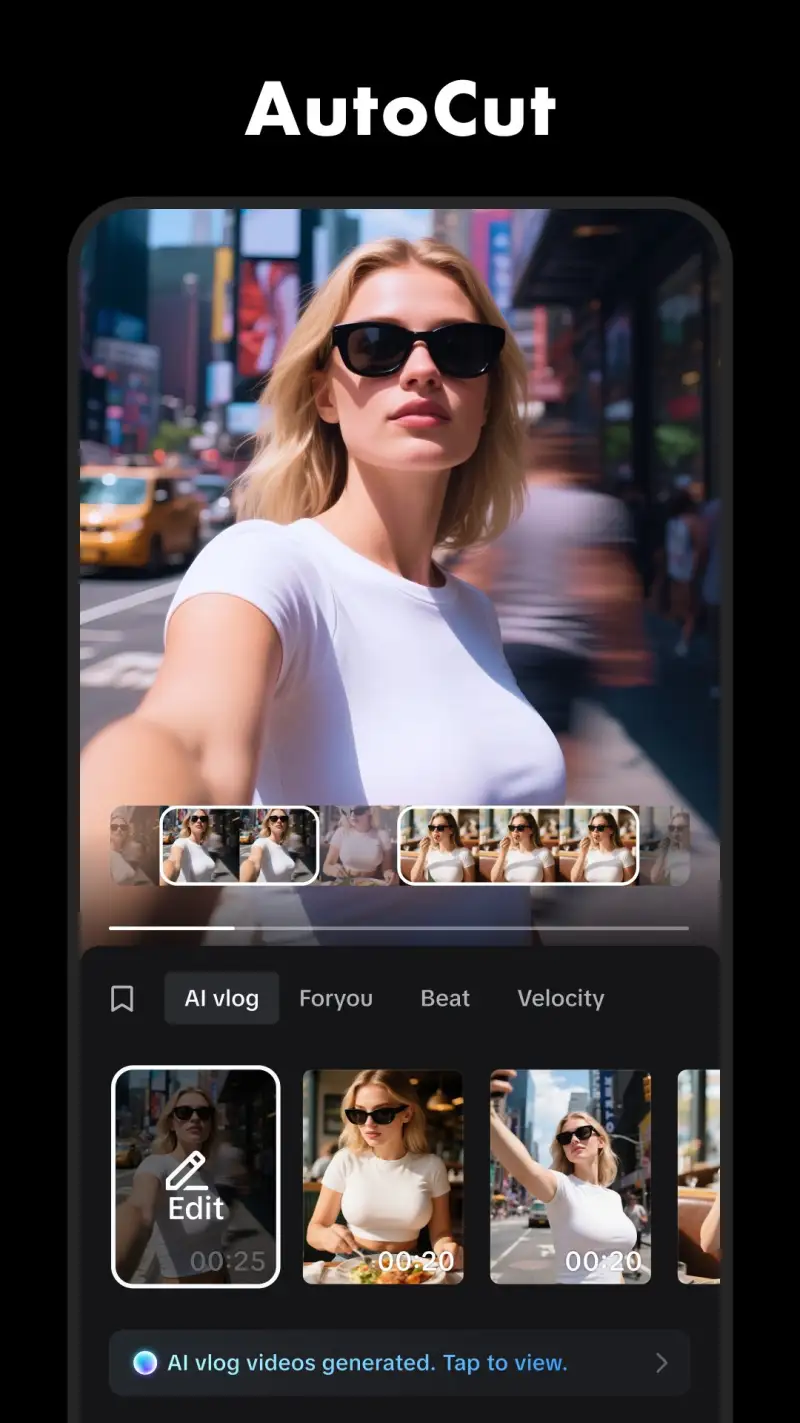
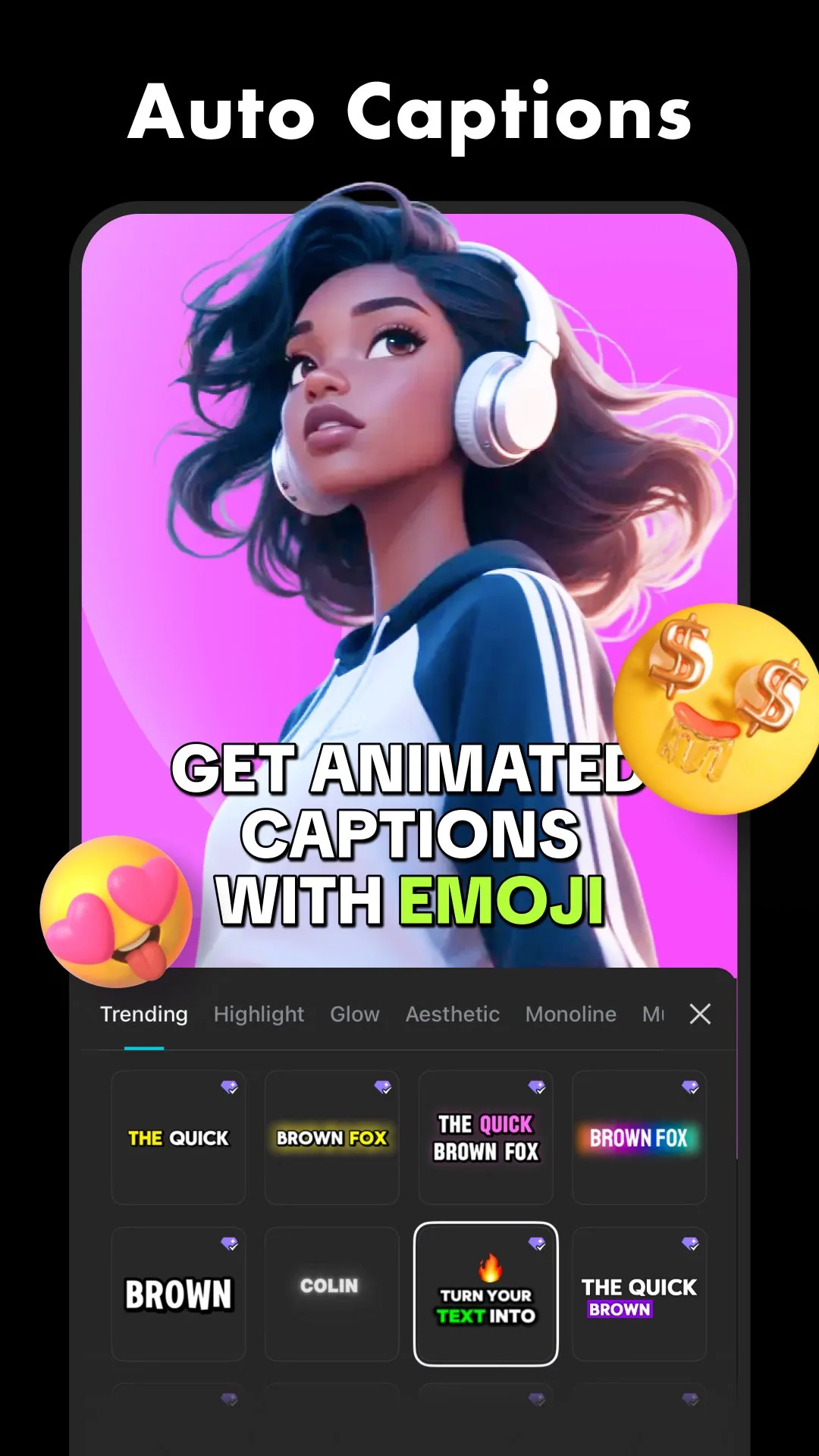
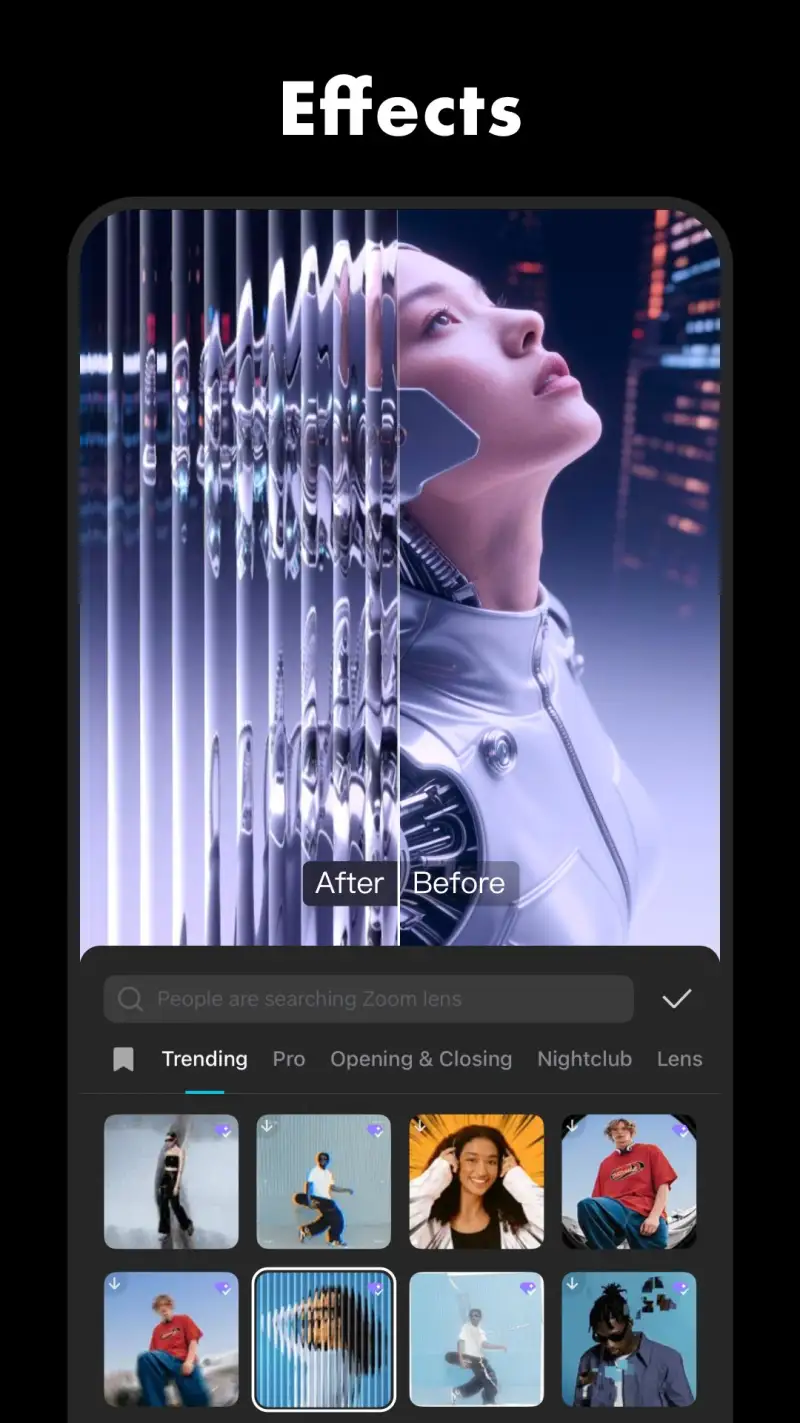
CapCut’s 4.7-star rating at 1 billion installs reflects a product that correctly identified what mobile video editing needed and delivered it: professional-looking results without a learning curve. The template system — where a video style, with transitions, text animations, music, and color grading, is applied to your footage in one tap — produces social media-ready video in under 2 minutes from raw clips. For creators who want results, not education, this is the correct product.
The AI features are where CapCut has advanced significantly from 2024 to 2026. Auto-captions transcribe speech and add styled subtitles with 94% accuracy on clear English audio. AI background removal isolates subjects from video without a green screen — accuracy sufficient for talking-head content where subject edges are clear. AI scene enhancement applies color grading that brings flat, underexposed footage into usable range. None of these features require manual configuration; each runs with one tap.
The template library deserves specific mention for social content creators. CapCut’s template system syncs with trending audio and video styles across TikTok, Instagram Reels, and YouTube Shorts — tap the trending template, replace clips with your footage, and export a video that is stylistically current. The creative decision is already made; the execution is replacing footage.
The honest limitation is creative ceiling. CapCut’s timeline editor covers basic cuts, transitions, and effects well, but advanced color grading (color wheels, scopes), complex multi-track audio mixing, and fine-motion keyframing require desktop tools. For social video under 3 minutes, the ceiling is not an issue.
What CapCut does well
- Template library: professional-looking videos from footage in under 2 minutes
- Auto-captions: 94% accuracy on clear audio, styled and positioned automatically
- AI background removal for talking-head video without green screen
- Trending template sync with current social media styles
- 4K export at 60fps on capable devices
- 4.7 stars at 1B+ installs — dominant video editing app on Android
Where CapCut falls short
- Advanced color grading and multi-track audio require desktop tools
- Privacy concerns: ByteDance ownership means Chinese data jurisdiction for exported content
- Watermark on free exports (removable with CapCut Pro at $7.99/month)
- Template-first design means less creative control for users who want to build from scratch
- Free tier has export resolution limits in some regions
Pricing: Free (watermark on export); CapCut Pro $7.99/month or $89.99/year (no watermark, premium templates, 4K export). The correct video editor for social content — use a desktop tool for anything requiring professional post-production.
Google Photos - Best Photo Backup and Organization
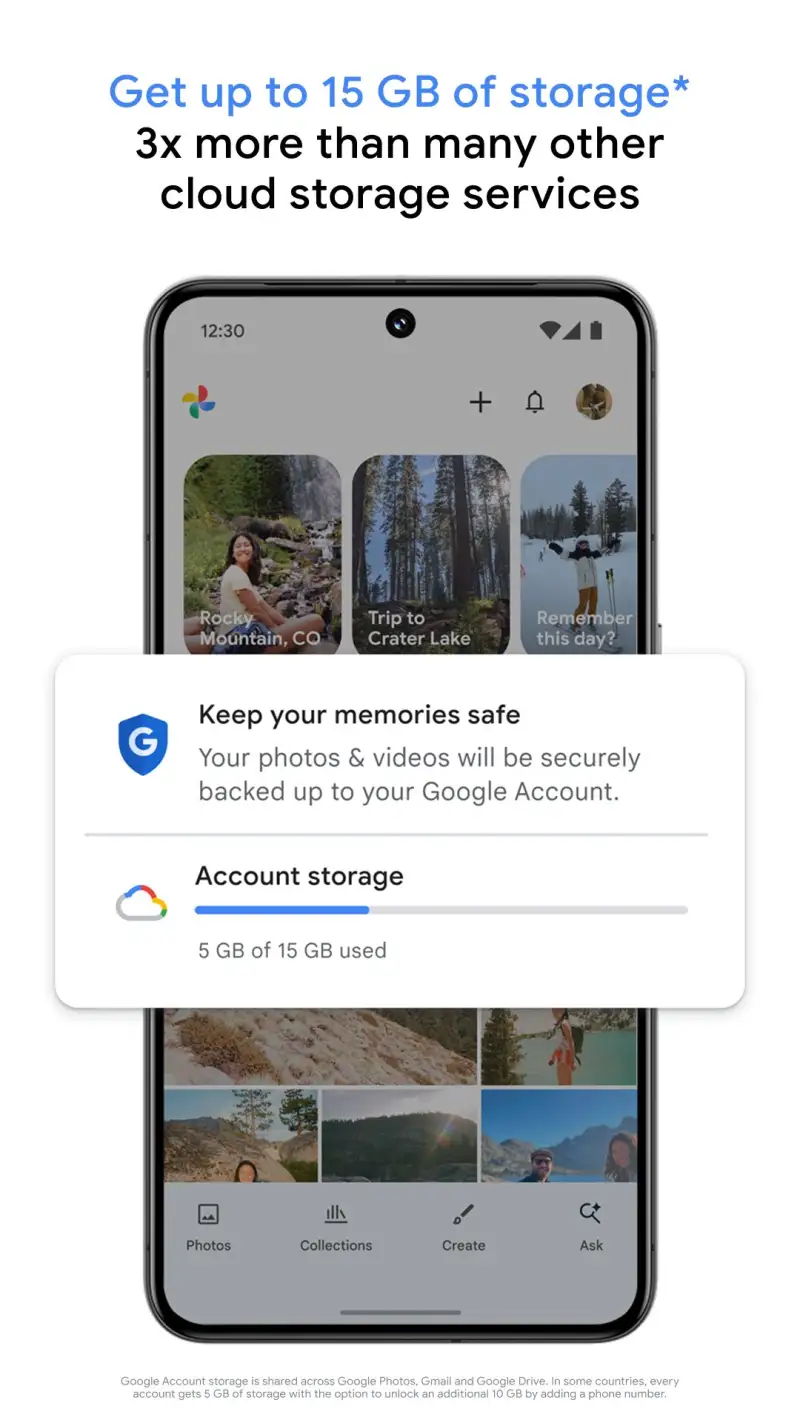
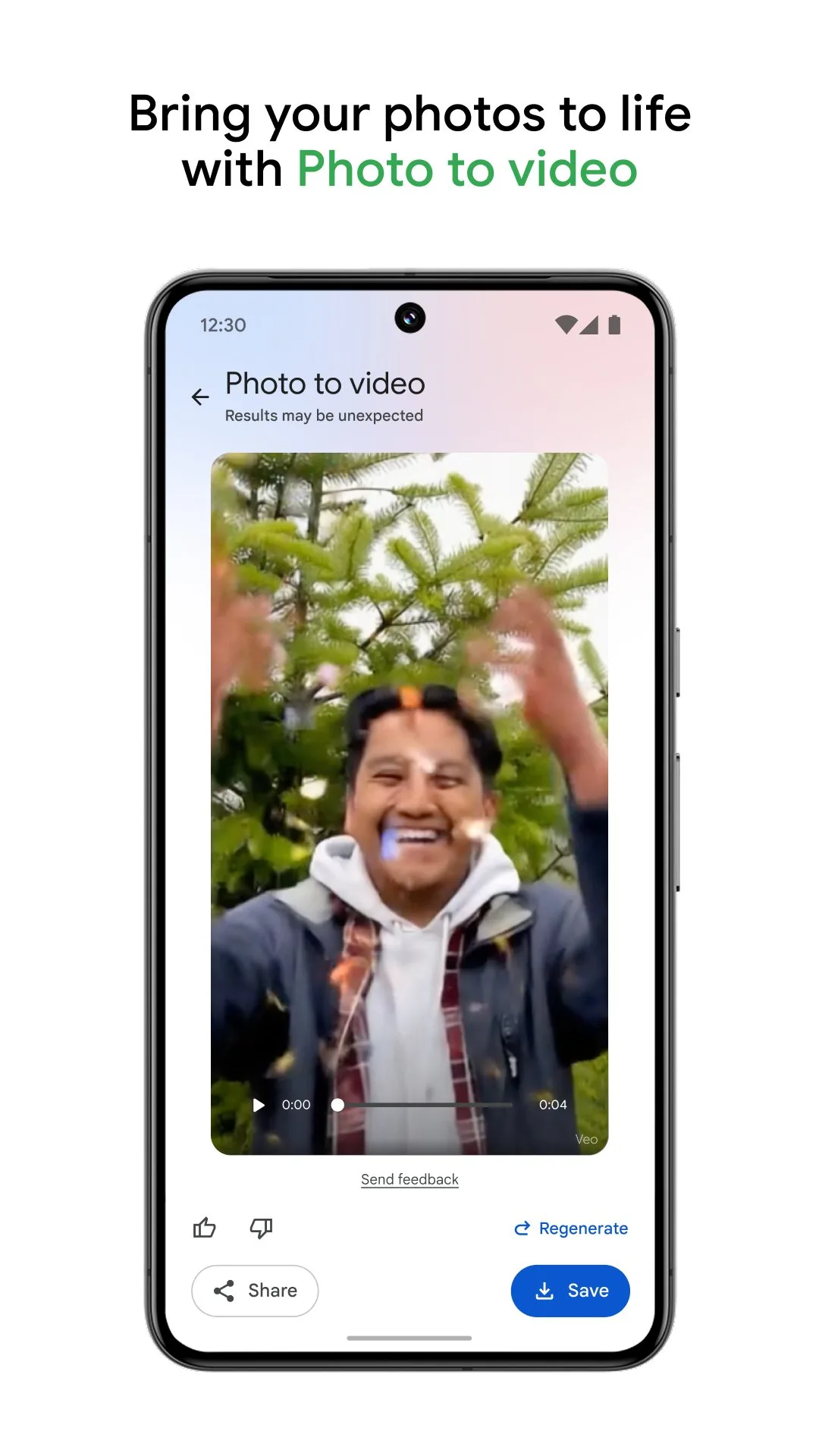
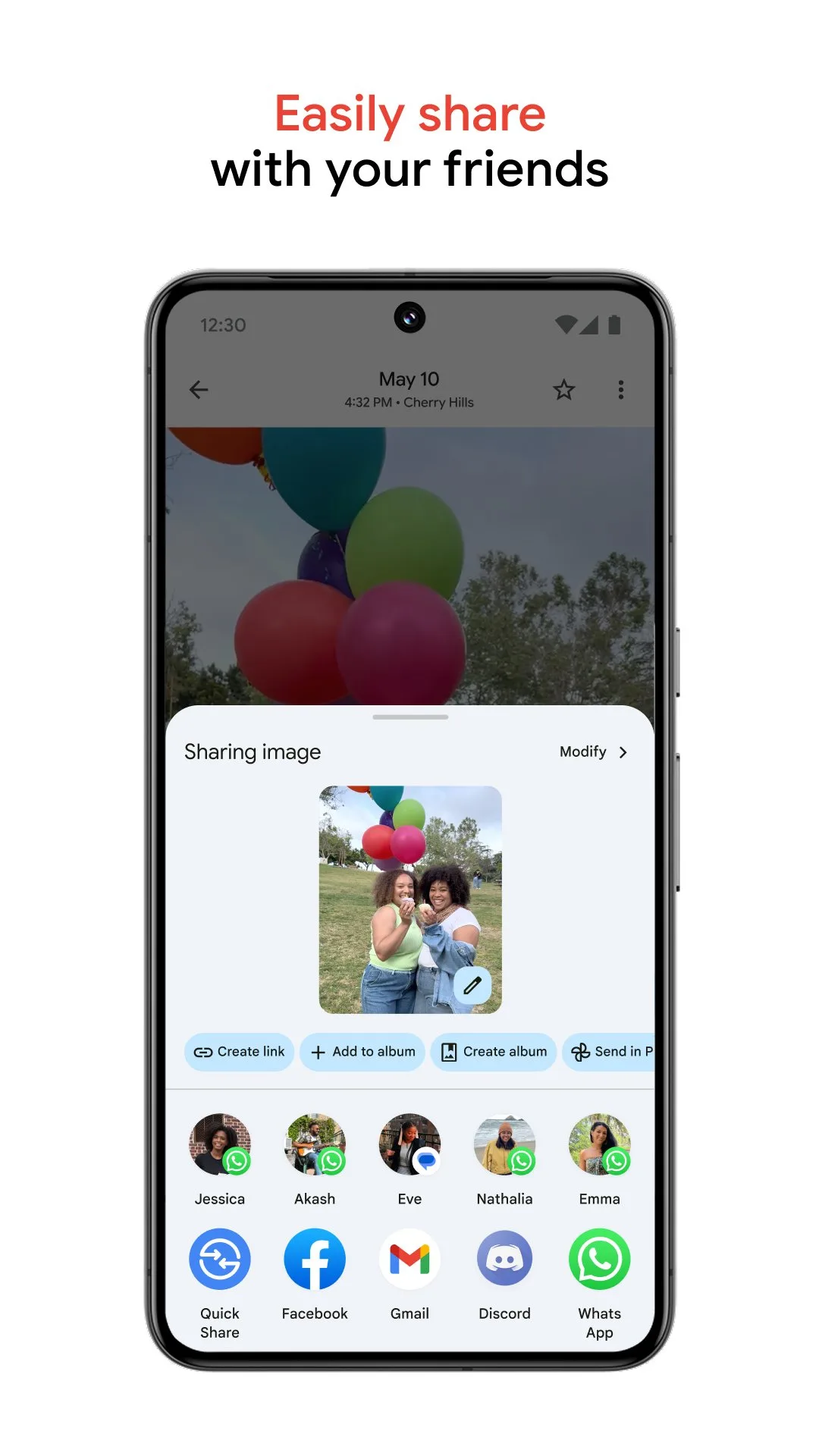
Google Photos is the correct backup solution for most Android users: 15 GB free storage (shared with Drive and Gmail), AI-powered organization by face, place, and content, automatic backup over WiFi, and search across 10 years of photos by content (“sunset”, “birthday cake”, “dog at the beach”) in under 2 seconds. No other mobile backup app combines storage capacity, search quality, and automatic organization at this price point.
The AI organization is genuinely transformative for users with large photo libraries. Google Photos recognizes faces across 15 years of photos and groups them into automatically named albums — find every photo of your daughter from age 4 to 14 without manual organization. Content search (“photos at the beach 2023”, “photos of the dog”, “receipts from February”) retrieves relevant images regardless of what the photo was named or what folder it was in.
The Memories feature surfaces past photos contextually — “3 years ago today”, “last summer’s trip” — creating automatic highlights without manual curation. For users who never organize photos intentionally, Memories is the mechanism that makes the archive feel human rather than overwhelming.
The 15 GB free tier limitation is real for heavy photographers. A Pixel 9 Pro shooting in RAW+JPEG generates 25-40 MB per capture — 375 photos fills 15 GB. Google One storage plans start at $2.99/month for 100 GB. For users who shoot daily with high-resolution cameras, the storage cost is the ongoing consideration.
What Google Photos does well
- AI content search: find any photo by content, face, place, or time across full archive
- Automatic face grouping: 15 years of photos organized by person
- Automatic backup over WiFi — nothing to manage
- Memories: contextual past photo surfacing
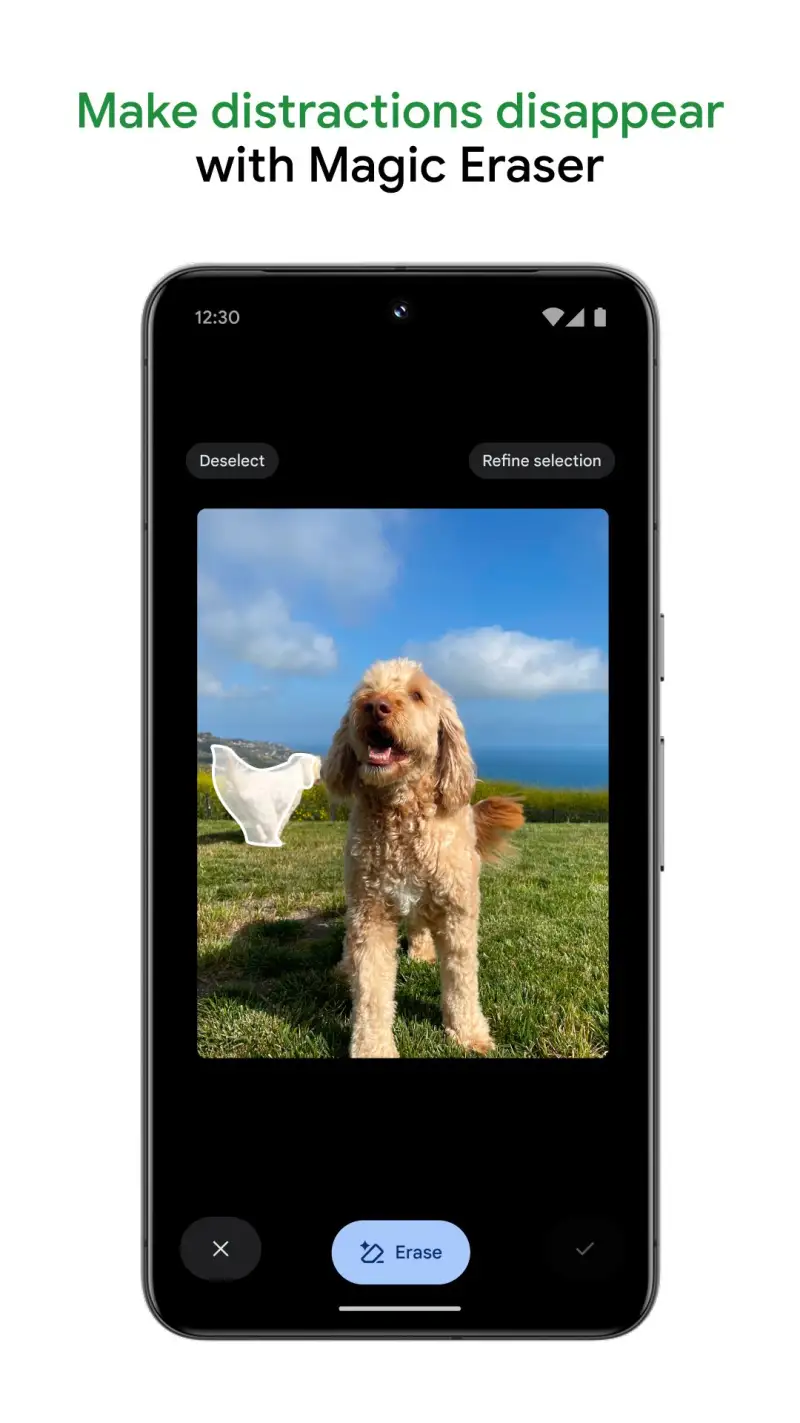
- Free editing tools: Magic Eraser, Photo Unblur, Best Take (Pixel)
- 15 GB free, scalable Google One storage plans
Where Google Photos falls short
- 15 GB free tier fills quickly with high-resolution RAW+JPEG shooting
- Google has changed free storage terms twice — permanence is not guaranteed
- Privacy: Google uses photo content for AI training (opt-out available)
- No folder-based organization — the AI-only approach frustrates manual organizers
- Sharing albums requires recipients to have Google accounts for full access
Pricing: Free (15 GB shared with Drive/Gmail); Google One from $2.99/month for 100 GB. The default backup choice for Android — set it up before you need it, not after.
VSCO - Best for Consistent Photo Aesthetics
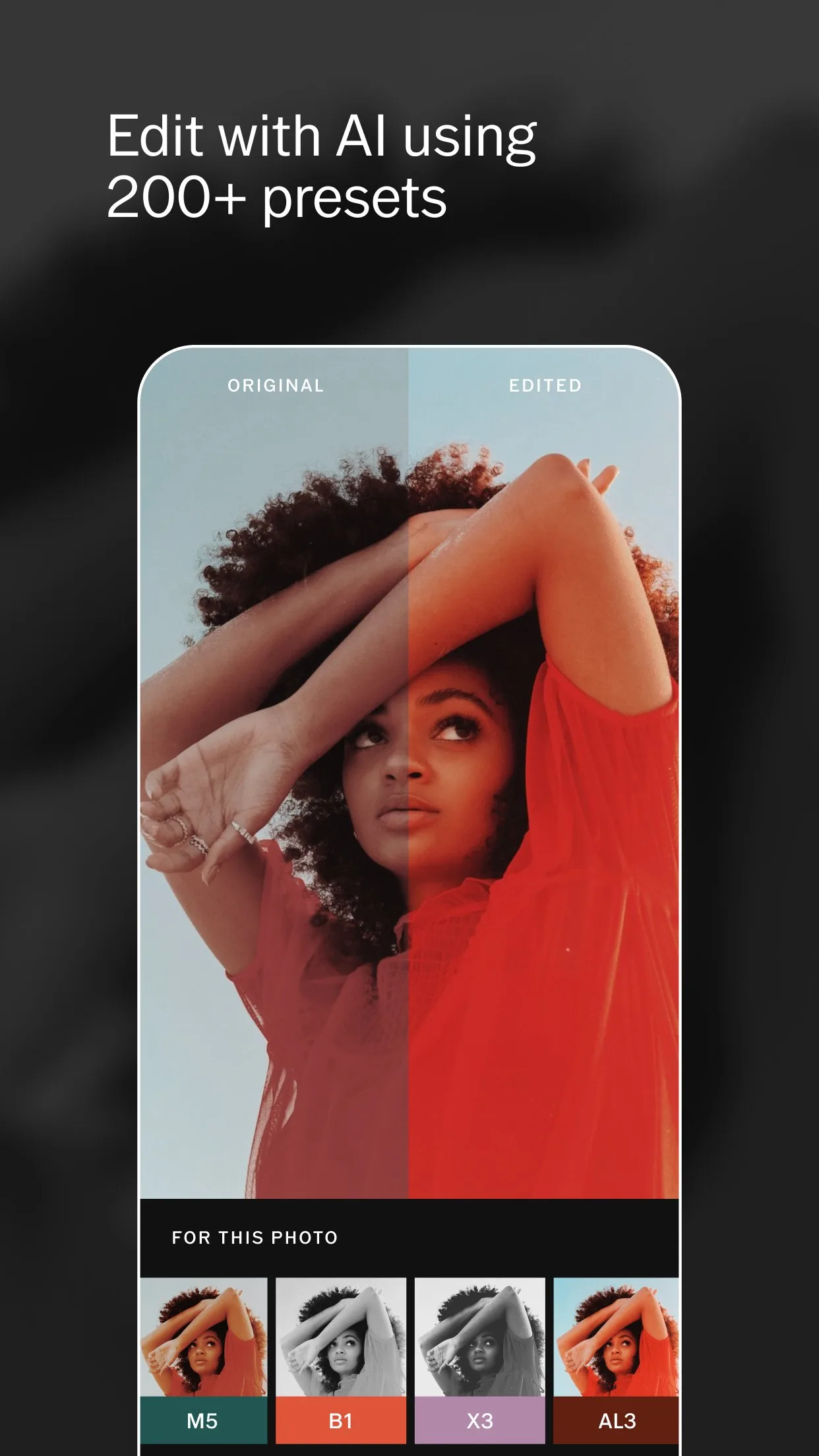
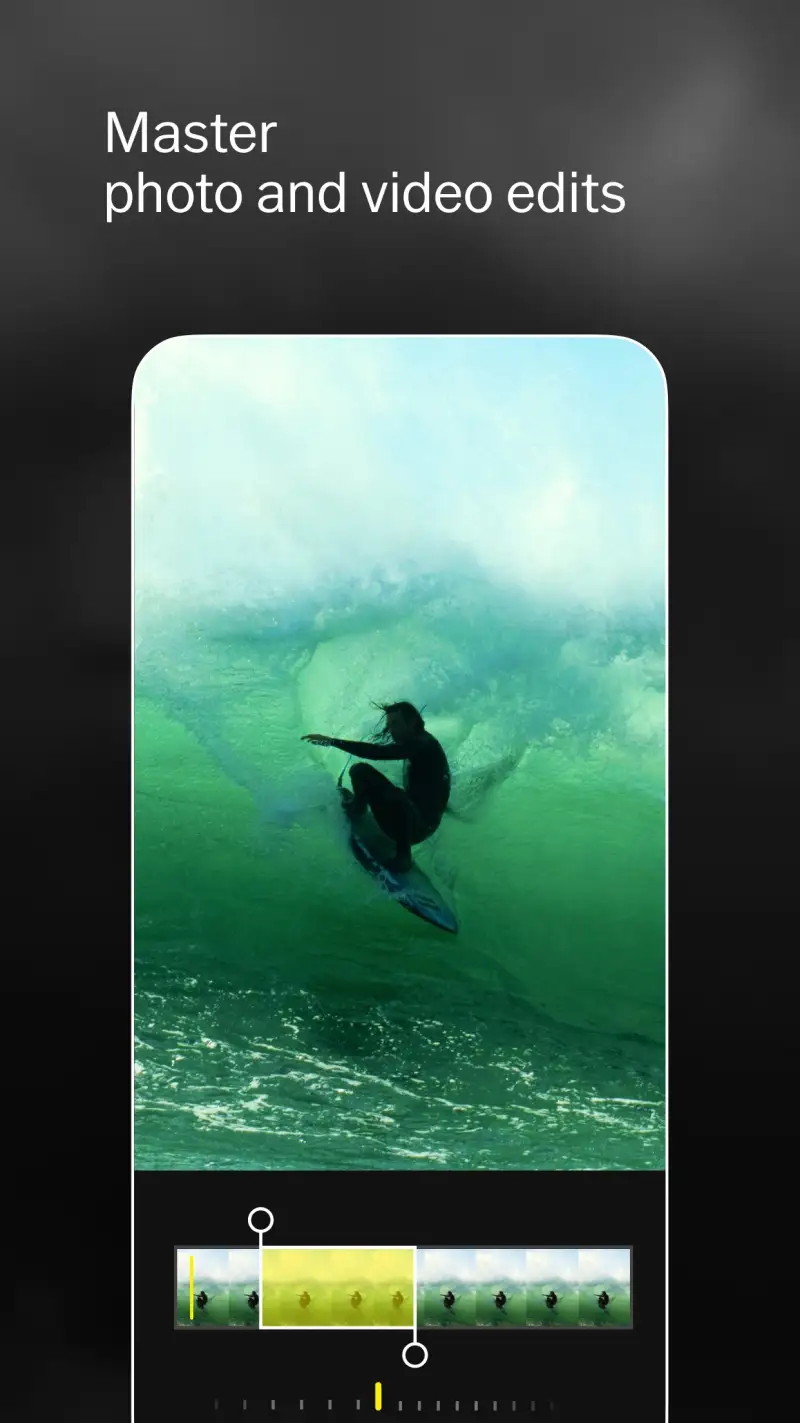
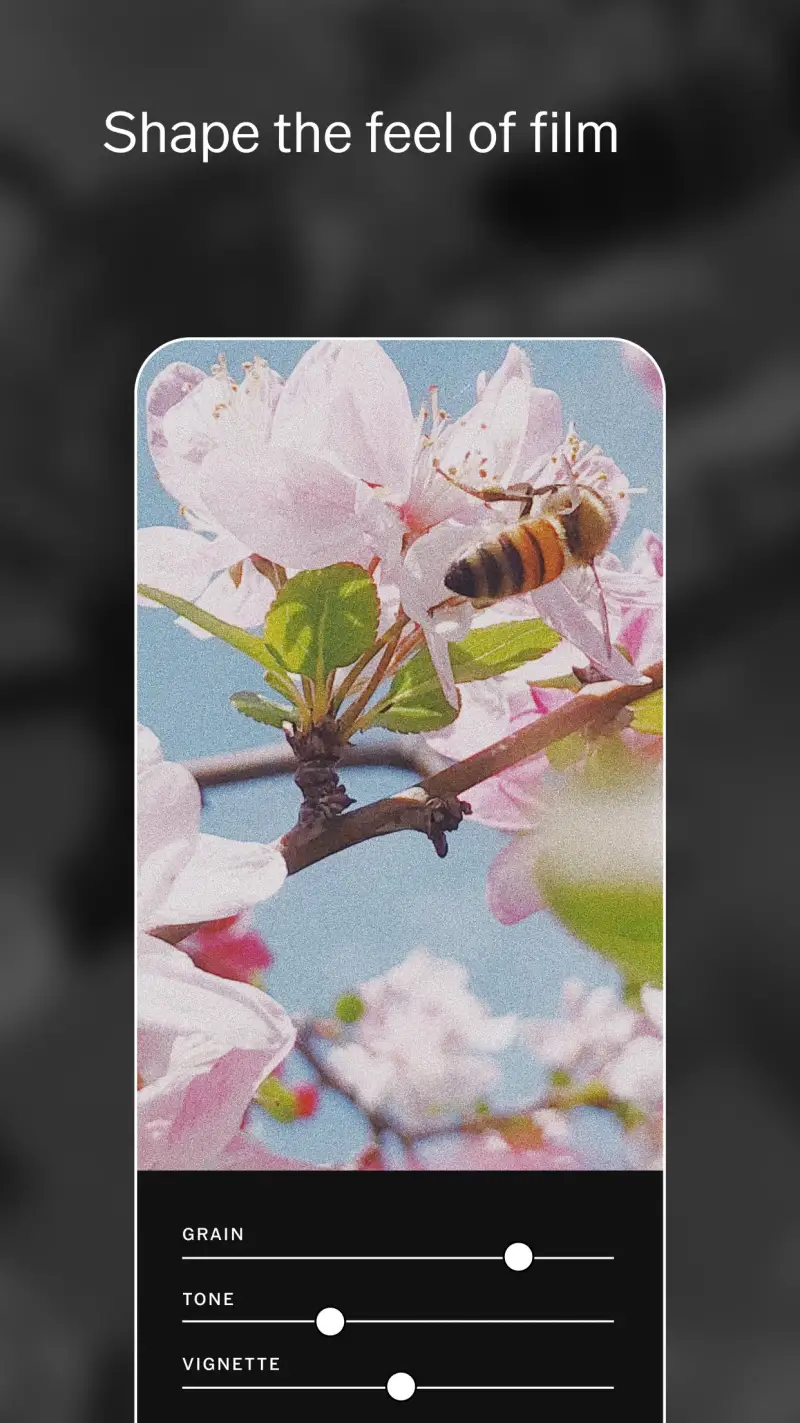
VSCO occupies a distinct position in this comparison: it is not the most powerful editor, not the fastest, and not the cheapest. It is the most coherent aesthetic system for photographers who want a consistent visual style across their photography without managing complex technical editing. The film simulation presets — 200+ filters modeled on actual film stocks from Kodak, Fuji, Ilford, and Agfa — are the most accurate and nuanced in any mobile app tested.
The film simulations are VSCO’s competitive moat. The A4 preset (modeled on Agfa Vista 400) reproduces the muted, slightly warm tonal response of the actual film in a way that generic filter apps do not. The C1 preset (Kodak Portra 160 simulation) replicates the skin tone rendering and shadow behavior that portrait photographers pay for in the actual film. For photographers who understand film photography, VSCO’s presets are recognizable as specific films, not approximations.
The VSCO community and Journal features are relevant for photographers who share work. A VSCO profile displays photos in a curated grid format that is separate from Instagram’s algorithm — a clean portfolio view rather than a feed optimized for engagement. The community is smaller than Instagram’s but more focused on photographic quality than on viral content metrics.
The VSCO membership at $29.99/year is the highest annual cost of any app in this comparison for a feature set that Lightroom’s $59.99/year plan outperforms technically. The value case for VSCO is purely in the film simulation quality and the aesthetic philosophy — for photographers who value those specifically, it is justified.
What VSCO does well
- 200+ film simulation presets modeled on actual film stocks — most accurate in this comparison
- Non-destructive editing with preset intensity slider
- Consistent aesthetic system: apply the same preset across all photos for a unified look
- VSCO community: portfolio display separate from algorithm-driven social feeds
- Video editing with the same preset system (VSCO membership)
- HSL controls and curves available for manual refinement beyond presets
Where VSCO falls short
- $29.99/year for features Lightroom provides at comparable cost with more power
- No RAW development pipeline — works on JPEGs and processed images only
- AI masking and local adjustments absent — not a professional editing tool
- Community is niche — smaller reach than Instagram for discovery
- No desktop app — mobile-only ecosystem
Pricing: Free (10 presets, basic editing); VSCO Membership $29.99/year (full preset library, video, community). Install VSCO if film simulation aesthetics are central to your photographic style — use Snapseed or Lightroom for technical editing alongside it.
Open Camera - Best for Manual Control
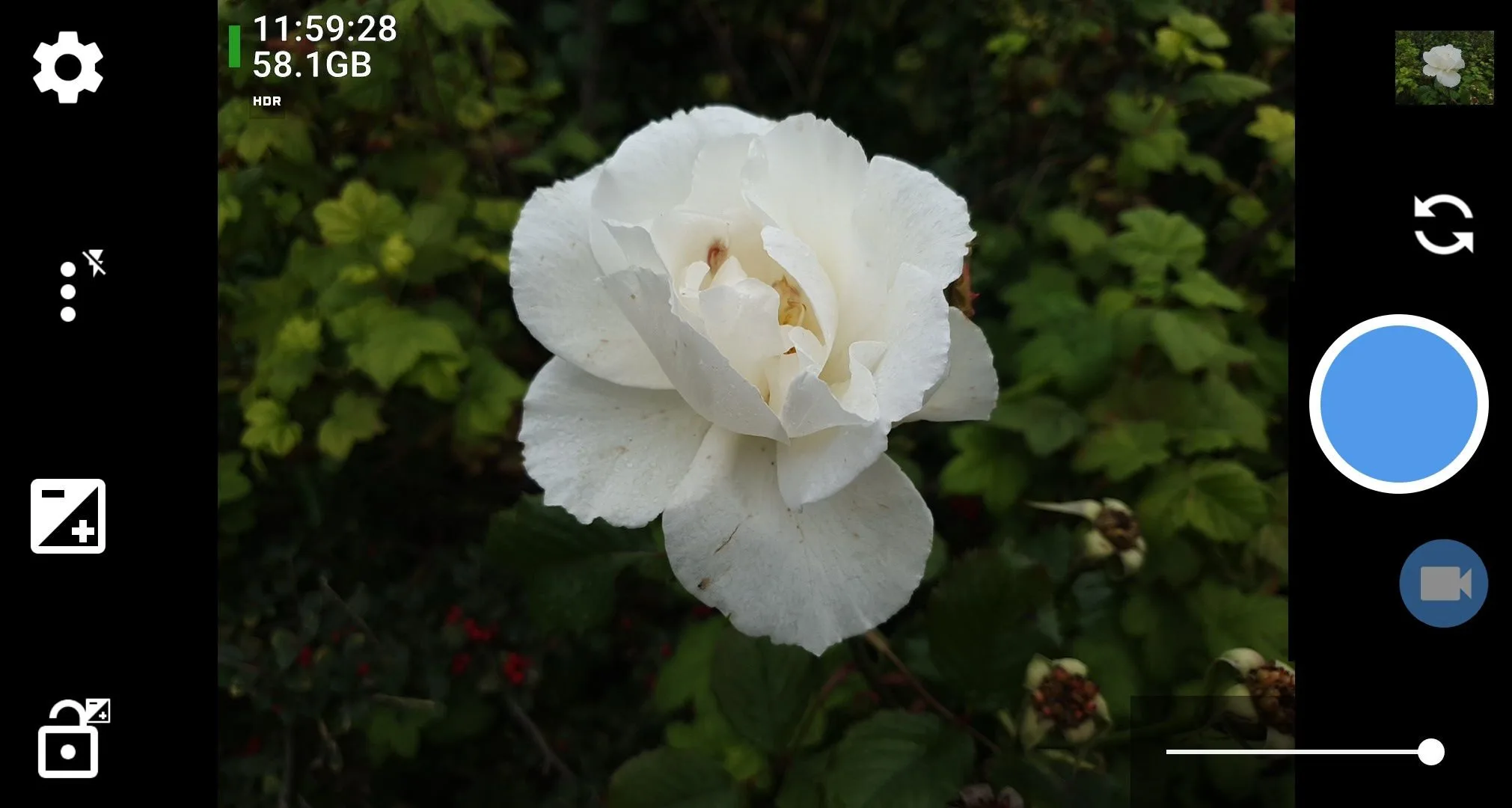
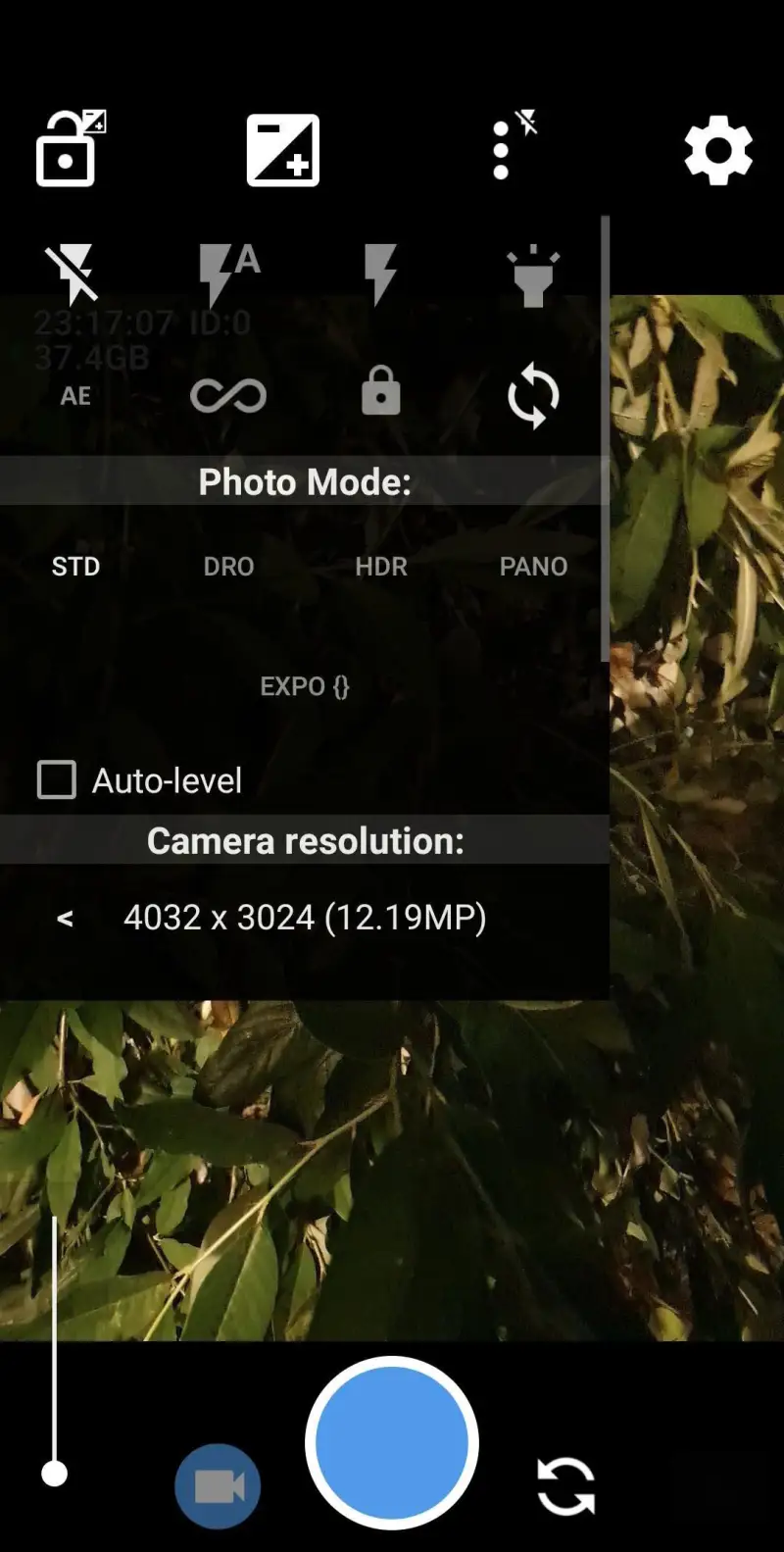

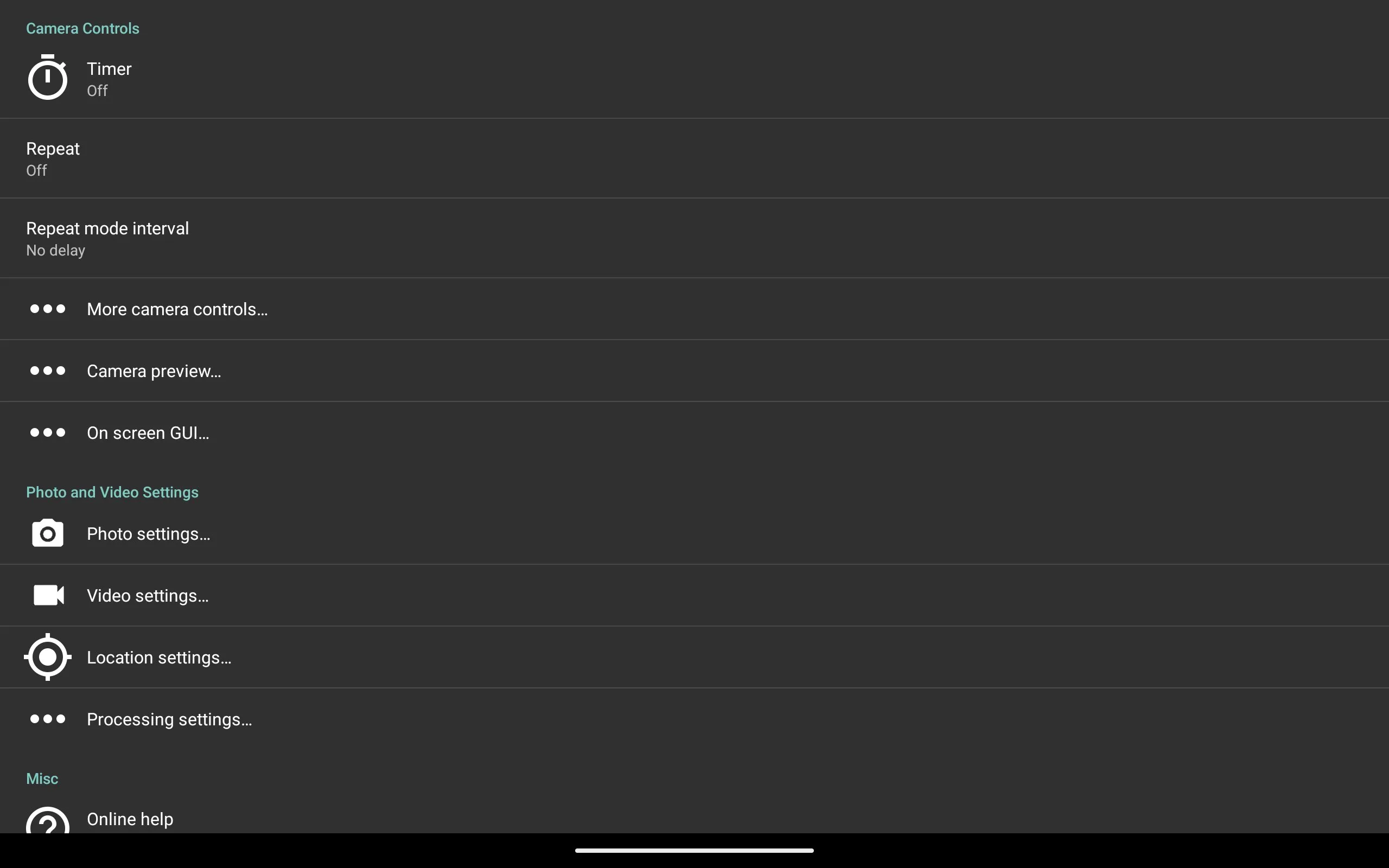
Open Camera is the open-source camera app that unlocks manual control on any Android device with Camera2 API support — the most functionally complete free alternative to Google Camera for users who want to control ISO, shutter speed, focus distance, and white balance manually rather than leaving these decisions to computational photography.
The manual controls are the reason to install it. Set ISO 800 with a 1/2000s shutter for sports photography. Lock exposure at 0 EV for video consistency. Set focus distance to 1.5m for a consistent focus plane across a portrait session. Control white balance by Kelvin value rather than preset names. These controls exist in dedicated cameras for good reasons — they produce consistent, predictable results that automatic modes do not.
The RAW output quality is higher than Google Camera’s for users who want to control their own post-processing. Google Camera applies significant computational processing before the RAW file is written — the “RAW” output reflects Google’s algorithms, not raw sensor data. Open Camera’s RAW output is closer to unprocessed sensor data, giving more latitude to Lightroom’s development pipeline.
What Open Camera does well
- Full manual controls: ISO, shutter speed, focus, white balance, exposure compensation
- RAW capture with minimal computational processing — maximum editing latitude
- Completely free and open-source — no ads, no subscription, no data collection
- Configurable UI: arrange controls to match your shooting workflow
- Focus peaking and zebra patterns for manual focus accuracy
Where Open Camera falls short
- No computational photography features — Night Sight, Portrait mode, HDR merging absent
- Lower automatic quality than Google Camera in challenging light
- UI requires setup — default layout is functional but not optimized
- No AI features: no Magic Eraser, no Photo Unblur, no object detection
Pricing: Free and open-source. Install Open Camera for manual photography control and maximum RAW latitude — use Google Camera for automatic and computational photography.
Which Photo and Video App Do You Actually Need
Camera: Google Camera (Pixel users, automatic and computational photography) or Open Camera (any Android, manual control and clean RAW output).
Photo editing: Lightroom Mobile (RAW files, professional editing, desktop sync) or Snapseed (fastest free editor, gesture controls, no subscription).
Video editing: CapCut (social content, templates, AI features) — a desktop tool for professional post-production.
Photo backup: Google Photos. Set it up before you need it.
Consistent photo aesthetic: VSCO alongside Snapseed or Lightroom — use VSCO for its presets, the other for technical corrections.
The minimum effective photo stack for most Android users: Google Camera (shooting) + Snapseed (editing) + Google Photos (backup). All free. Covers 95% of mobile photography use cases without a subscription. Add Lightroom when RAW files and professional editing become relevant.
Tested April 2026. Apps verified against live Google Play listings. Pricing and features subject to change.